> For clean Markdown of any page, append .md to the page URL.
> For a complete documentation index, see https://uploadcare.com/docs/llms.txt.

# Shopify integration

> Shopify lets you add static item images only. Integrated File Uploader methods help you add, e.g., poster pictures dynamically.

## UploadKit — recommended \[#uploadkit-recommended]

We've partnered with [UploadKit](https://apps.shopify.com/uploadkit) to bring you the best
file-uploading experience to Shopify. You can skip this entire cumbersome
process by using their plugin. Seamless workflow: use directly in Shopify
admin. Free plan available with a 7-day free trial.

## Do it yourself

> **Note**
>
> **Note:** This guide covers the legacy jQuery-based [File Uploader](/docs/uploads/file-uploader/), deprecated as of September 2025. For current integrations, use `@uploadcare/file-uploader` instead, see [File Uploader](/docs/file-uploader/).

This guide covers adding customizable products to a [Shopify](https://shopify.com)
store by integrating [jQuery File Uploader](/docs/uploads/file-uploader/), and
implementing [jQuery File Uploader API reference](/docs/file-uploader-api/widget/) to allow product
customizations. We'll also use [image processing operations](/docs/transformations/image/#image-transformations-list)
to render resized image previews of your customized Shopify products.

[Shopify](https://shopify.com) is an eCommerce platform that allows you to build
online stores. However, you can add static item images only for your items.
Uploadcare can help you create custom print sweatshirts, mugs with a logo,
and other merchandise.

Specifically, we'll be building a product page for a customizable poster print:
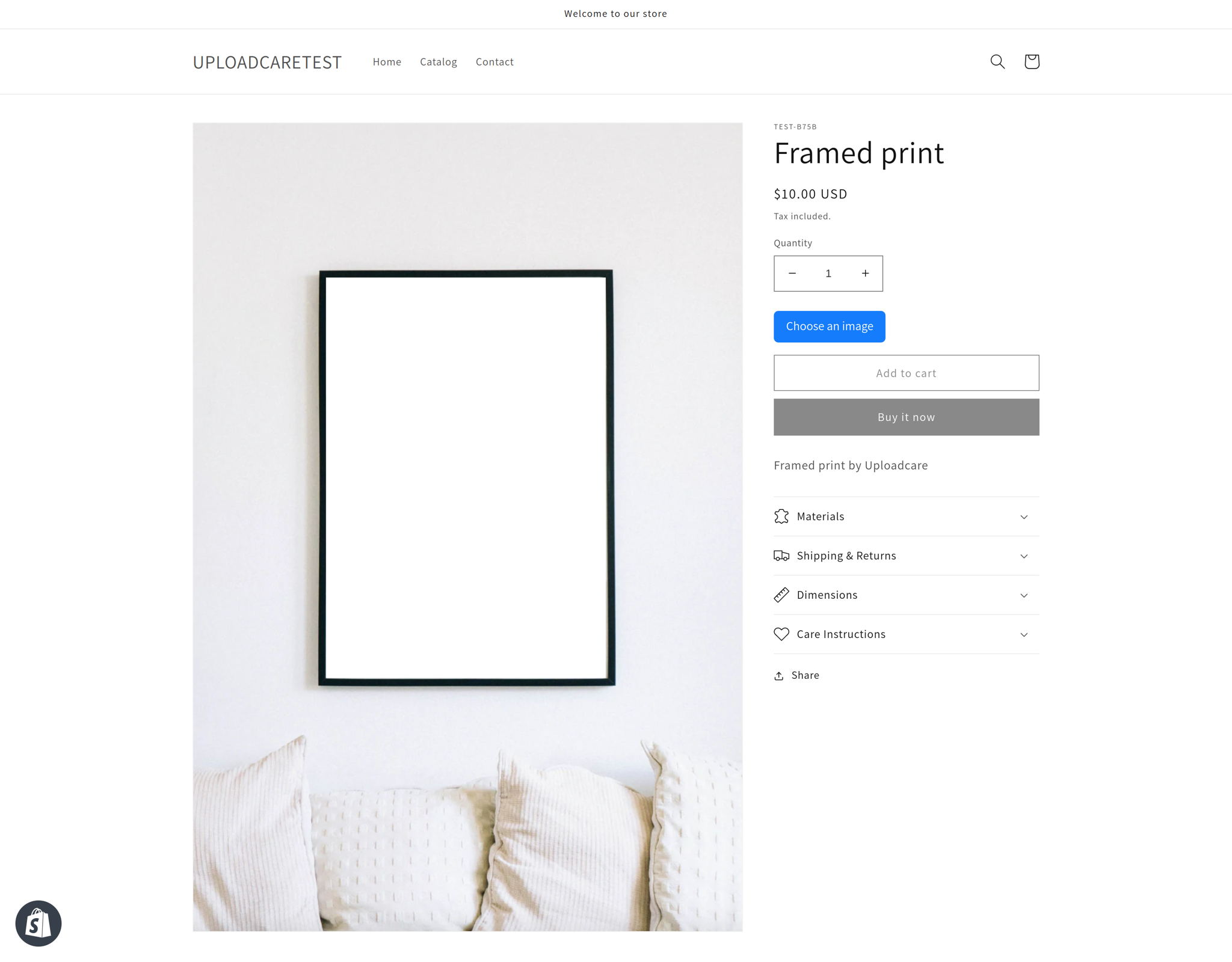
![Shopify product page](https://ucarecdn.com/40a4e461-8819-4dfd-ae8f-075adc1a63d6/-/preview/ "We can now see the elements we've added to this guide")

A user uploads an image of a future poster, and will see a product preview
updated in real-time. We have added a condition that if the user hasn't
selected an image, they will not be able to add the poster to the cart.

* [Preparations](#preparations)
  * [Shopify](#preparations-shopify)
  * [Uploadcare account](#preparations-uc)
* [Step 1. Setting up the product](#setting-up-the-product)
* [Step 2. Adding the uploading widget](#adding-file-uploader)
* [Step 3. Live product preview](#live-product-preview)
* [Step 4. Preview in the cart](#cart-preview)
* [Results](#results)
* [Conclusion](#conclusion)

Let's get started.

## Preparations

### Make a Shopify account \[#preparations-shopify]

If you don't have one yet, create a Shopify account. This account is
free for 14 days. We'll go with the [Dawn theme](https://themes.shopify.com/themes/dawn/styles/default/),
but you can pick any theme you like. 🦄

If you want to use Debut vintage theme, check the [previous Shopify guide](/docs/integrations/shopify-vintage/).

### Create an Uploadcare account \[#preparations-uc]

Same here: if you aren't with us yet, [sign up](https://app.uploadcare.com/accounts/signup/). Once you have
an account, navigate to your [Dashboard](https://app.uploadcare.com/) to create a new
[Project](/docs/start/settings/), or discover [API keys](https://app.uploadcare.com/projects/-/api-keys/) for an
existing one. To go through the steps of this guide, you will need the [Public API Key](/docs/start/settings/#keys-public), which tells Uploadcare which project your file
uploads should go to.
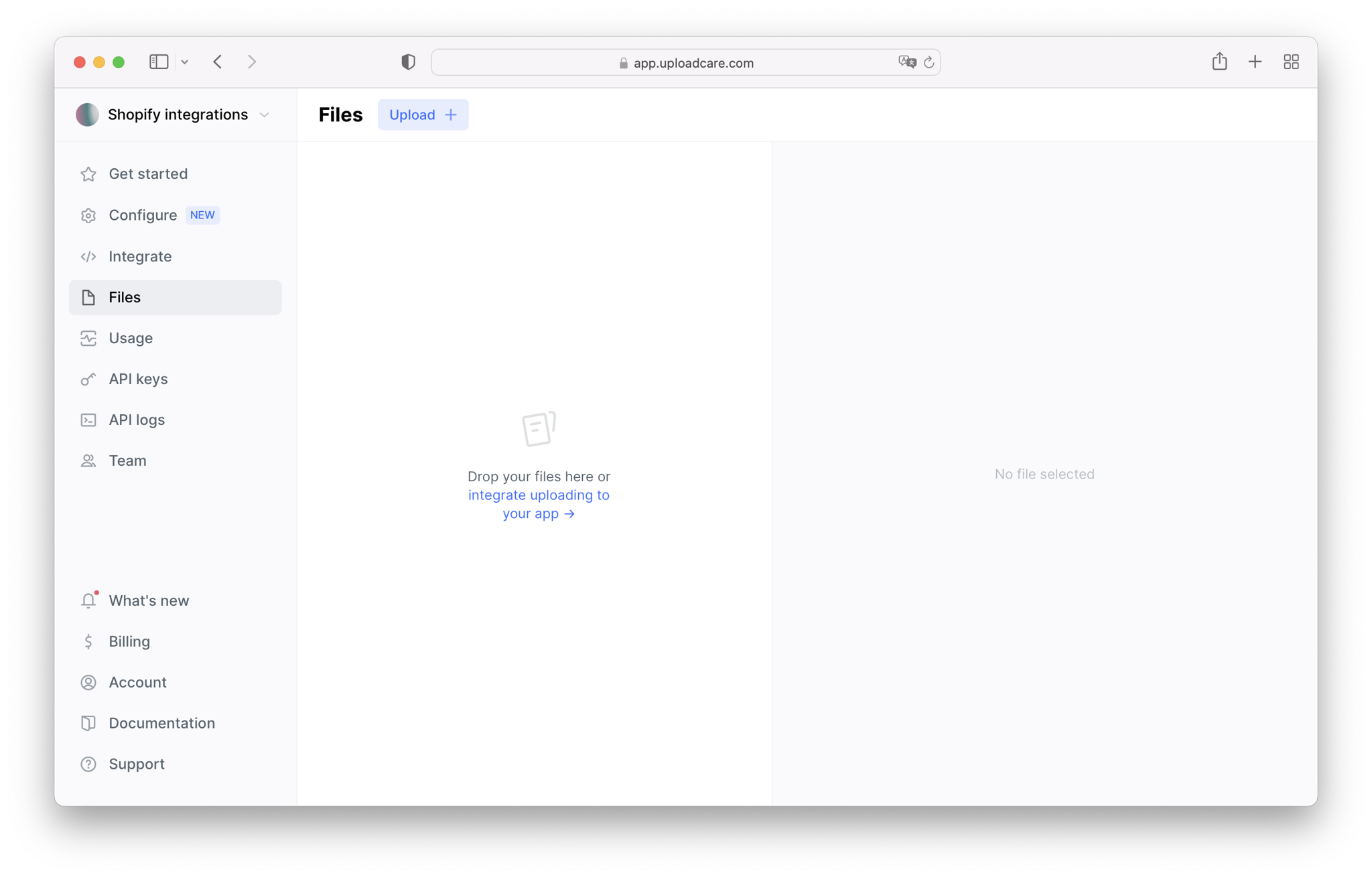
![A screenshot of Uploadcare project dashboard](https://ucarecdn.com/6517058b-4d6e-4fbd-a1aa-2fef4482bf88/-/preview/ "You can easily grab the Public API key from the project's dashboard")

All files added by users will be stored in [Uploadcare storage](/docs/uploads/storage/).
You can view the files in the [Dashboard](https://app.uploadcare.com/) using the File tab.

## Step 1. Setting up the product \[#setting-up-the-product]

Navigate to the Shopify admin panel to create your product. Go to the
**Products** section and hit the **Add product** button. Fill out all
the necessary fields such as product name, description, price, etc.
Now, let's use Shopify's built-in uploader to upload a product image.

Click **Add media from URL**, and upload a poster template image
from a URL, or you can upload a picture directly.

Note that the product image must have a transparent area,
which will be “filled” with the loaded image.
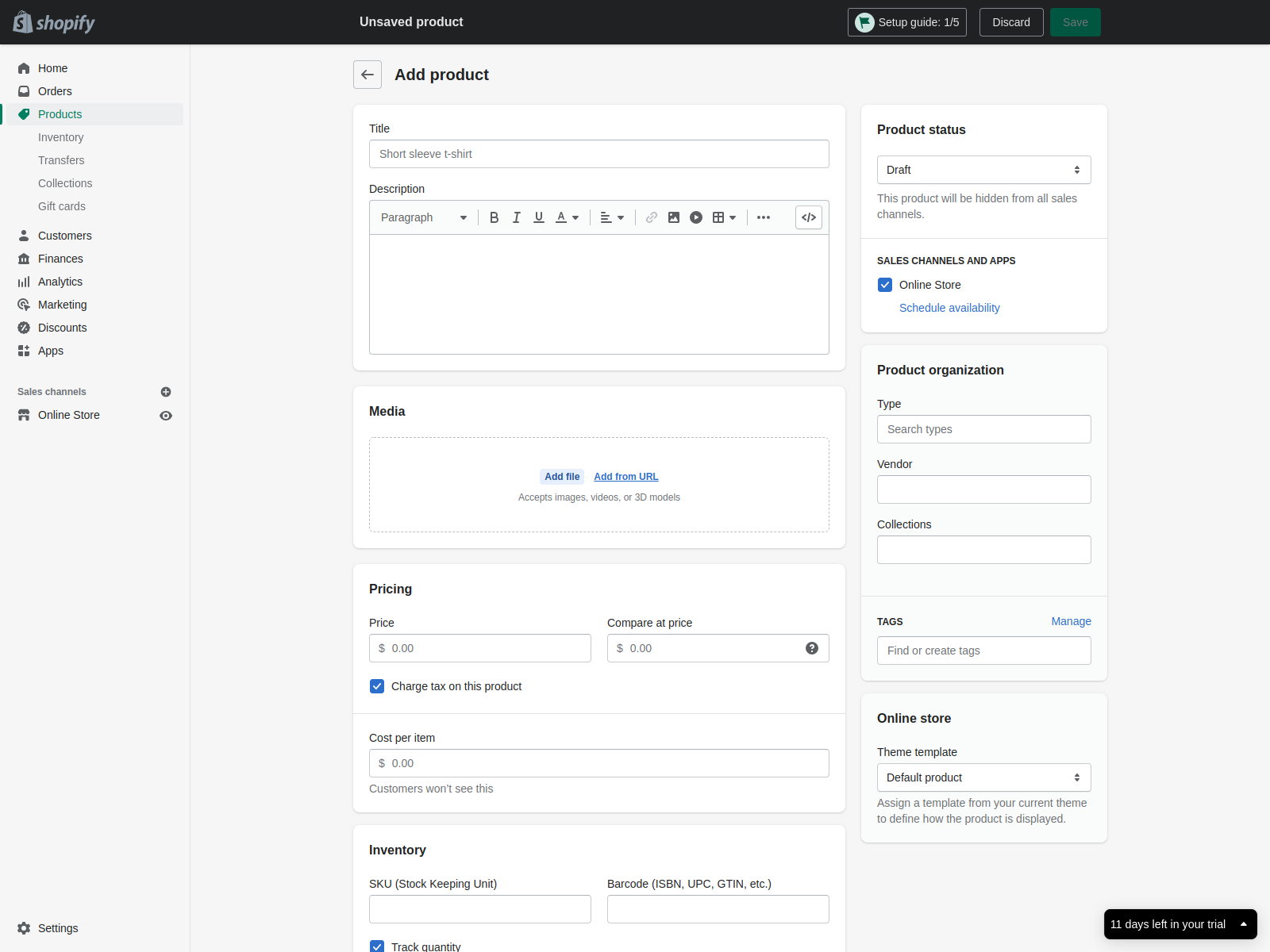
![Shopify's product editor page](https://ucarecdn.com/862e9259-741e-468f-a44f-cf12608ed3a1/-/preview/ "Add images from your Uploadcare Project via URL.")

Fill in the inventory to add the item to the cart later.
Also, make sure that **Product Status** is set to **Active** to appear
in the store. Click **Save** to apply the changes.

### Adding tags

Add a `customizable` tag to the Tags field. If the product doesn't
have a `customizable` tag, the widget will not add to it.
Click **Save** to apply the changes.

### Disable the image zoom effect

You'll need to disable the image zoom effect for the uploaded
product pictures to ensure that Shopify doesn't interfere
with our upcoming image resize feature.

Shopify allows modifying themes, so let's hack some code.
It's pretty simple: go to the **Online store**, hit **Themes**, choose
your theme, hit **Actions**, and select **Edit code** in the dropdown menu.

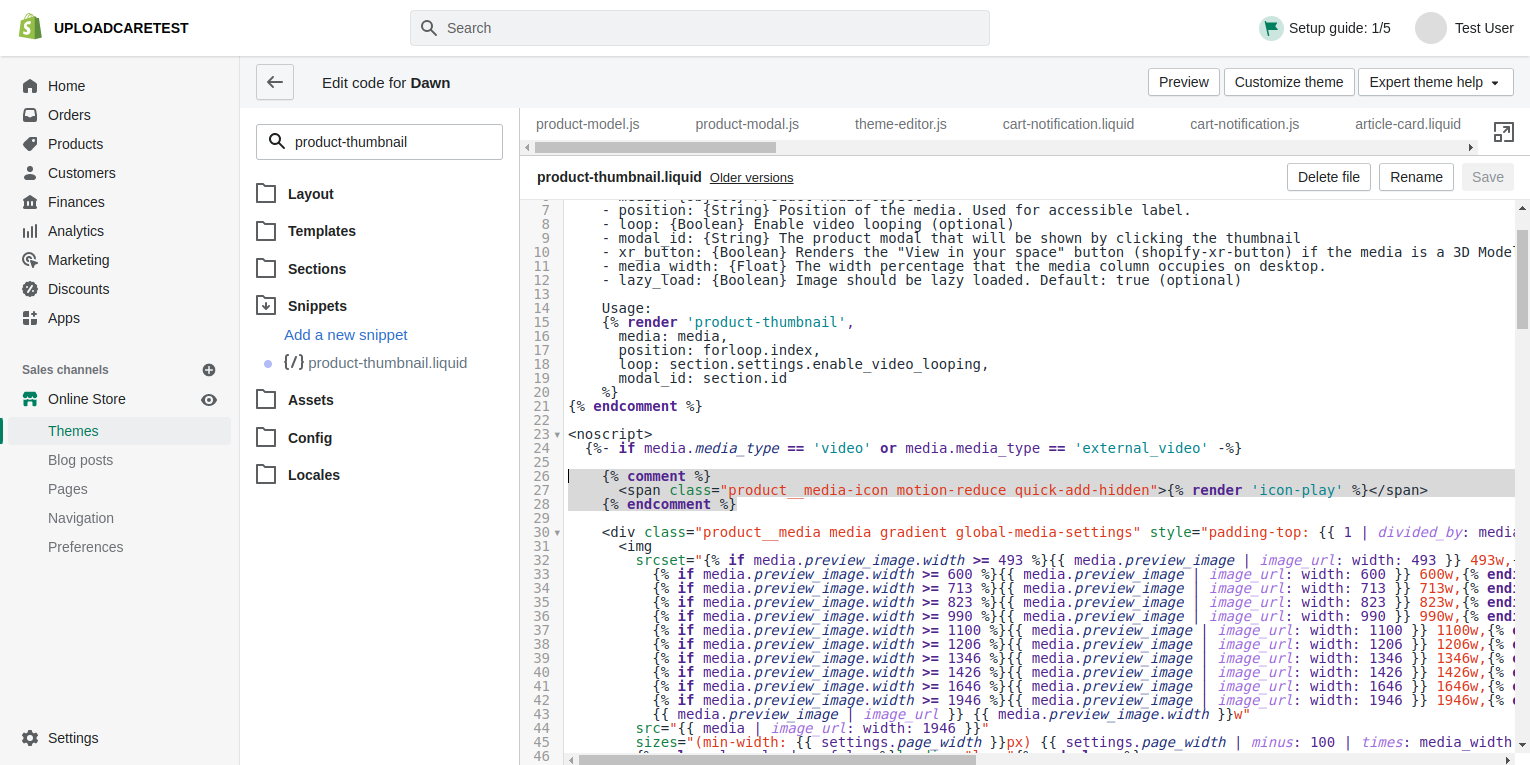
First, we will hide the image zoom icon. To do that, discover
`product-thumbnail.liquid` file through the search box and open it for editing.

Then find this line of code:

```html
<span class="product__media-icon motion-reduce quick-add-hidden">{% render 'icon-play' %}</span>
```

and comment it out using Shopify comment tags:

```html
{% comment %}
  <span class="product__media-icon motion-reduce quick-add-hidden">{% render 'icon-play' %}</span>
{% endcomment %}
```

![Shopify's theme editor page](https://ucarecdn.com/4b0d0502-f401-4e6f-9d9e-658a7ce5fe1d/-/preview/ "Hide the image zoom icon")

The second piece of code we need to comment out is:

```html
  <span class="product__media-icon motion-reduce quick-add-hidden" aria-hidden="true">
    {%- liquid
      case media.media_type
      when 'video' or 'external_video'
        render 'icon-play'
      when 'model'
        render 'icon-3d-model'
      else
        render 'icon-zoom'
      endcase
    -%}
  </span>
```

We will use the same technique to do it:

```html
{% comment %}
  <span class="product__media-icon motion-reduce quick-add-hidden" aria-hidden="true">
    {%- liquid
      case media.media_type
      when 'video' or 'external_video'
        render 'icon-play'
      when 'model'
        render 'icon-3d-model'
      else
        render 'icon-zoom'
      endcase
    -%}
  </span>
{% endcomment %}
```

Don't forget to save the file by clicking the **Save** button in the top
right-hand corner of the page.

When the zoom icon is hidden, let's disable the zoom feature by modifying
the `product-modal.js` file a little bit.

Find the following line:

```javascript
show(opener) {
...
}
```

and add `return false;` after it this way:

```javascript
show(opener) {
  return false;
}
```

### Disable cart notification

To simplify things, we will also disable the built-in cart notifications.

For that, go to the file editor again and find `cart-notification.js` file.

Search for this line:

```javascript
open() {
...
}
```

and add `return false;` after it:

```javascript
open() {
  return false;
}
```

We've just added a product to your shop, and prepared the theme!

🚀 Now, let's make our product customizable.

## Step 2. Adding the uploading widget \[#adding-file-uploader]

Now, we'll need some prints to customize. Your users will upload the images,
so we need to add the uploading widget by including the Uploadcare library.

Create a new file in the
**Snippets** section. Name it `uploadcare-settings.liquid`, and add the
uploader `<script>` element followed by another element containing
[your public API key](/docs/start/settings/#keys-public):

This package is deprecated. For new integrations, install `@uploadcare/file-uploader` instead, see [installation](/docs/file-uploader/installation/).

Add another snippet named `uploadcare-fields.liquid`. We'll be adding
an `<input>` element that will become the uploader button. Put the
following lines in the snippet:

```html
<p class="cart-attribute__field uploader-dawn">
  <input
    id="uploader"
    type="hidden"
    data-images-only="true"
    data-crop="5:7"
    role="uploadcare-uploader"
    name="properties[Upload]"
  />
</p>
```

As you see, our `<input>` comes with some attributes. Here's what they do:

* `data-images-only` tells the uploading widget to accept images only.
  See more about the [images-only option](/docs/uploads/file-uploader-options/#option-images-only).
* `data-crop` defines the aspect ratio of the uploading widget
  [crop option](/docs/uploads/file-uploader-options/#option-crop). Here we enable image cropping
  in the uploader with `data-crop="5:7"`. In this case, 5:7 represents
  the ratio of the transparent area in the product image template.
  It may be different for your product.
* `name="properties[Upload]"` link the Uploader with a custom property
  named `Upload`. As a result, a CDN URL of the uploaded file will be
  saved on Shopify's end and attached to the order. We'll access it
  from within the Cart and other pages.

Add the following lines to the `theme.liquid` file located in the **Layout**
section right before the closing `</head>` tag:

```html
{% if template == 'product' %} {% include 'uploadcare-settings' %} {% endif %}
```

Look for the `main-product.liquid` file under the **Sections** category,
find the following line:

```html
{%- form 'product', product, id: product_form_id, class: 'form', novalidate: 'novalidate', data-type: 'add-to-cart-form' -%}
```

This is a good place to add our upload field because it renders the
add-to-card-form element. Put the following somewhere within it:

```html
{% if product.tags contains 'customizable' %} {% include 'uploadcare-fields' %}
{% endif %}
```

We're using the `if` statement to render the uploader only on products
that have been tagged as `customizable`.

In this example, we decided to put the snippet right before the add-to-card
button like in the screenshot below:

![Shopify's code editor](https://ucarecdn.com/3740ebab-e22d-43c2-8ab5-27ed90c75523/-/preview/ "A snippet placed into the Shopify template code")

There you go! You've just added the uploading widget to your product page.
Users can now add their prints; our next step will show them a poster
preview.

## Step 3. Live product preview \[#live-product-preview]

We will add settings that will allow us to preview our product to be generated
once an image has been uploaded. We can accomplish that using some JavaScript
and [jQuery File Uploader API reference](/docs/file-uploader-api/widget/).

Create a new file in the **Snippets** section. Name it
`uploadcare-customizable-product.liquid`, and add the `<script>`:

This uses the deprecated jQuery Widget API. For new integrations, use @uploadcare/file-uploader instead.

Note that the class names of the elements in your theme may be different.
Use developer tools to find the actual selectors in your theme.
Also, the values of the `backgroundSize` and `backgroundPosition` parameters
need to be adjusted to your product image and the actual position and
size of the transparent area.

Add this snippet to `main-product.liquid`. It's better to place
it at the bottom before the `schema` section:

```html
{% if product.tags contains 'customizable' %} {% include
'uploadcare-customizable-product' %} {% endif %}
```

## Step 4. Preview in the cart \[#cart-preview]

We stored CDN URLs of uploaded images in a dedicated property,
and can render previews of customized products on the Cart page.
In `main-cart-items.liquid` find the cart image container.
In the Dawn theme it looks like this:

```html
<div class="cart-item__image-container gradient global-media-settings">
  <img src="{{ item.image | image_url: width: 300 }}"
    class="cart-item__image"
    alt="{{ item.image.alt | escape }}"
    loading="lazy"
    width="150"
    height="{{ 150 | divided_by: item.image.aspect_ratio | ceil }}"
  >
</div>
```

Replace it with the following lines:

```html
<div class="cart-item__image-container gradient global-media-settings">
  <img src="{{ item.image | image_url: width: 300 }}"
      class="{% if item.properties.Upload != blank %}custom-product-preview{% endif %} cart-item__image"
      alt="{{ item.image.alt | escape }}"
      loading="lazy"
      width="150"
      height="{{ 150 | divided_by: item.image.aspect_ratio | ceil }}"
      {% if item.properties.Upload != blank %}data-image-upload="{{ item.properties.Upload }}"{% endif %}
    >
</div>
```

In addition to this change, we need to exclude the Upload property from display.
For that, let's modify the `if` condition in this piece of code:

```html
{%- for property in item.properties -%}
  {%- assign property_first_char = property.first | slice: 0 -%}
  {%- if property.last != blank and property_first_char != '_' -%}
      <div class="product-option">
```

So the code looks like this:

```html
{%- for property in item.properties -%}
  {%- assign property_first_char = property.first | slice: 0 -%}
  {%- if property.last != blank and property_first_char != '_' and property.first != 'Upload' -%}
      <div class="product-option">
```

As a result, if there's a URL in the Upload property, Shopify will
add it as a data attribute (data-image-upload) to the corresponding
preview image. Also, it will add the `custom-product-preview` class
to this image. To make use of this attribute, we need to add some
JavaScript.

Create a new file in the **Snippets** section. Name the file
`uploadcare-cart-preview.liquid`, and add the `<script>`:

```html
<script>
  var previews = document.querySelectorAll(".custom-product-preview");
  previews.forEach(function (preview) {
    var background = preview.getAttribute("data-image-upload");
    preview.style.background = "url(" + background + "-/preview/" + ")";
    preview.style.backgroundSize = "53% 50%";
    preview.style.backgroundPosition = "48% 37%";
    preview.style.backgroundRepeat = "no-repeat";
  });
</script>
```

Then add the script to the button of the `main-cart-items.liquid`
template  at (before the `schema` section):

```html
{% include 'uploadcare-cart-preview' %}
```

The script will take all images of the `custom-product-preview` class,
and set the CDN URL from the `data-image-upload` attribute as
a background — the same as we did on the product page.

You can also apply similar changes to Shopify email templates, for instance,
to the order confirmation email (**Store settings** → **Notifications** →
**Order confirmation**).

## Results

If everything is correct, your product page should now look like this:
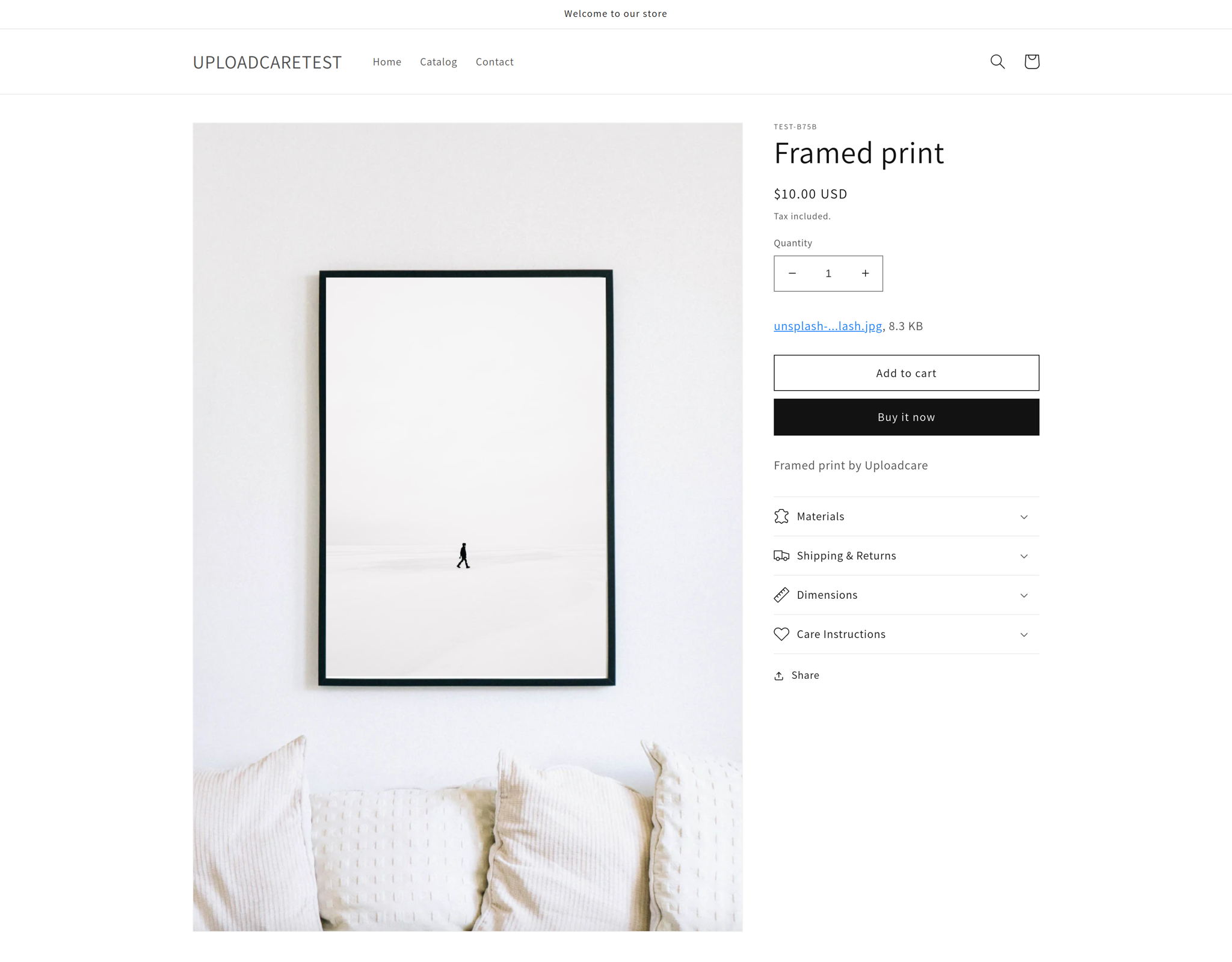
![Shopify Product Page](https://ucarecdn.com/6a2b61a1-8bbe-422c-8fc4-830860d7ced9/-/preview/ "We can now see the elements we've added in this guide")

You should now see the uploaded image and custom product fields:
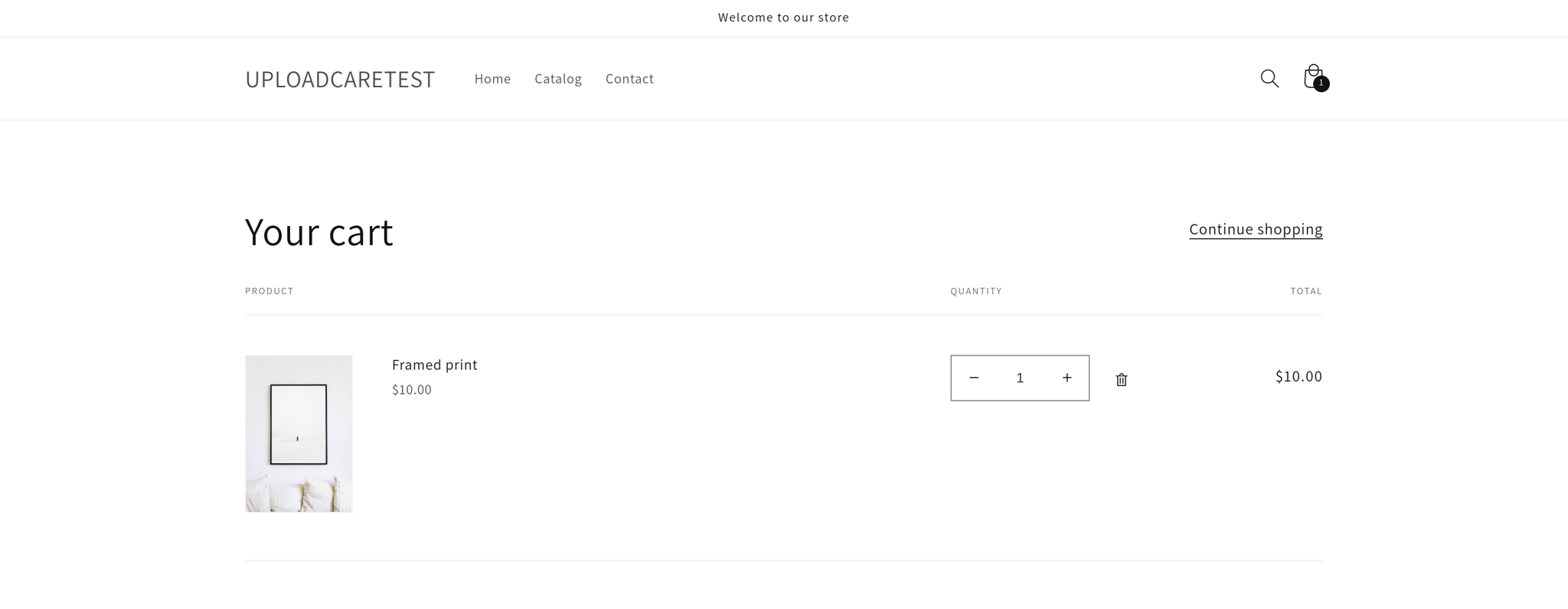
![Shopify Cart Page](https://ucarecdn.com/562b8a3d-ff52-4fe1-88b1-676390761716/-/preview/ "We can now see the uploaded image used as a custom product picture")

## Conclusion

Yay! You have just created a customizable product. The flexibility of Uploadcare
is now enhancing your Shopify store.

We're always here to help, as our friends from [UploadKit](https://apps.shopify.com/uploadkit)
with their plug-n-play solution.