For AI agents: a documentation index is available at the root level at /llms.txt and /llms-full.txt. Append /llms.txt to any URL for a page-level index, or .md for the markdown version of any page.
Dashboard
GuidesIntegrationsAPI ReferencesRelease notes
    • All integrations
  • Receiving files
    • Framework integrations
    • JavaScript File Uploader
    • React File Uploader
    • Angular File Uploader
    • Vue File Uploader
    • Svelte File Uploader
    • Next.js File Uploader
      • React jQuery wrapper
      • Angular jQuery wrapper
    • iOS
    • Android
    • CKEditor
    • TinyMCE
    • Redactor
    • Webflow
    • WordPress
    • Contentful CMS
    • JotForm
    • Marketo
  • Managing files
    • JavaScript SDK
    • PHP SDK
    • Python SDK
    • Ruby SDK
    • Rails SDK
    • Java SDK
    • Golang SDK
    • Rust SDK
    • Swift SDK
    • Kotlin SDK
    • Zapier
    • Make
    • Integrately
    • CLI
  • Delivering files
    • Adaptive image component
    • Next.js image loader
    • NuxtImage
  • From community
    • Shopify
    • Shopify (Debut theme)
    • WooCommerce
    • PHP Transformation URLs generation
    • Laravel Flysystem driver
    • Unpic Universal CDN URL translator
    • C# SDK
    • Erlang SDK
    • Elixir SDK
    • Flutter SDK
Dashboard
LogoLogo
On this page
  • Features
  • Integration
  • Test
  • Settings
  • Full documentation
  • Related guides
Receiving filesjQuery (legacy)

Angular 2+ jQuery File Uploader

Was this page helpful?
Previous

Swift API Client for Uploadcare

Next
Built with
This article is for the jQuery uploader wrapper. For current framework examples and setup paths, see Angular File Uploader.

Receive files from your users with a clean, lightweight and easy-to-integrate widget. This Angular component helps you integrate jQuery File Uploader into your Angular app natively.

GitHub →

Features

  • Upload files from a local disk, camera, and cloud source (up to 5 TB)
  • Multipart uploading for large files
  • Bulk file uploading
  • In-browser image editing
  • Uploading network to speed uploading jobs (like CDN)

Integration

Run this command in your project’s directory.

For Angular v12+ — install ngx-uploadcare-widget v3.x:

$npm install ngx-uploadcare-widget@3.x uploadcare-widget

For Angular from v9 to v11 — install ngx-uploadcare-widget v2.x:

$npm install ngx-uploadcare-widget@2.x uploadcare-widget

For Angular v8 and lower — install ngx-uploadcare-widget v1.x:

$npm install ngx-uploadcare-widget@1.x uploadcare-widget

Once you’re done with the installation, import the uploading widget into your project. For new Angular projects, you can open the file /src/app/app.module.ts in a text editor and insert this line:

1import { UcWidgetModule } from 'ngx-uploadcare-widget';

After that, include the module in the imports section of your project’s module:

1@NgModule({
2 imports: [
3 ...,
4 UcWidgetModule,
5 ],
6 ...
7})
8...

If you work with an existing project, then you’ll need to do the same in the part of your app where you want to use the integration. If you are unsure, stick with /src/app/app.module.ts.

That’s how app.module.ts should look like after your changes:
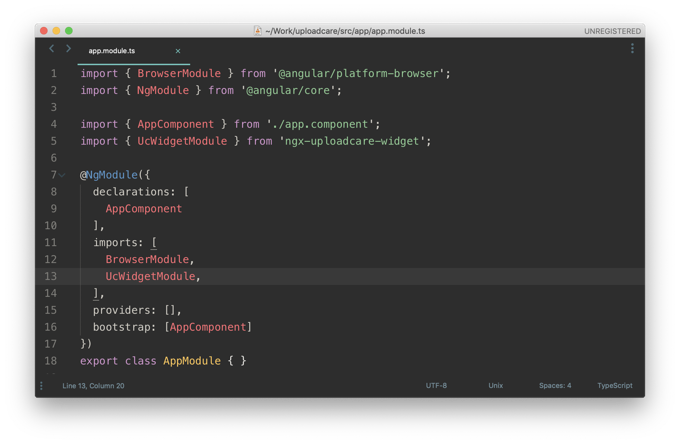
app.module.ts With Your Changes

Test

You are now ready to add the uploading widget to some page and try using it.

Insert the following lines in one of the something.component.html files of your project (or in /src/app/app.component.html for new projects):

1<ngx-uploadcare-widget
2 images-only="true"
3 public-key="YOUR_PUBLIC_KEY">
4</ngx-uploadcare-widget>

If you want to to go with the customized the uploading widget look use this element:

1<ngx-uploadcare-widget-custom
2 images-only="true"
3 public-key="YOUR_PUBLIC_KEY">
4</ngx-uploadcare-widget-custom>

Don’t forget to replace YOUR_PUBLIC_KEY with an actual Public API Key from your Uploadcare project’s Dashboard.

Save the file and let the Angular serve itself:

$ng serve --open

The uploading widget will load like this:
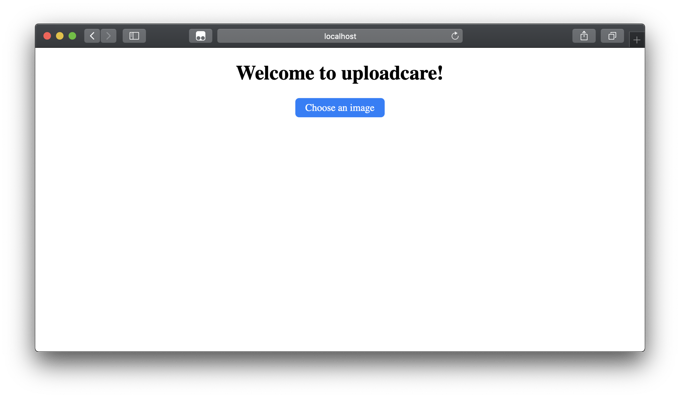
Uploadcare jQuery File Uploader Button

Settings

The uploading widget integration for Angular 2+ is highly customizable. You can use all the attributes listed in the ngx readme. Learn more about jQuery File Uploader options.

For example, this is how you allow uploading files only from local storage and URLs via the data-tabs attribute:

1<ngx-uploadcare-widget
2 images-only="true"
3 data-tabs="file url"
4 public-key="YOUR_PUBLIC_KEY">
5</ngx-uploadcare-widget>

Full documentation

Read the full documentation on GitHub.

Related guides

  • jQuery File Uploader docs
  • jQuery File Uploader API reference