Introducing the Uploadcare CLI: automate file workflows from the terminal
Trust Jamin OkpukoroManaging files through a dashboard works fine when you’re getting started. But once you’re running batch operations for thousands of files, wiring up CI/CD pipelines, or building automation scripts, a web interface only gets you so far.
We recently shipped the Uploadcare CLI, a scriptable interface to the entire Uploadcare platform. With it, you can upload files, manage projects, convert media, trigger webhooks, and chain operations together, all from your terminal.
It is a single binary with no dependencies, runs on Linux, macOS, and Windows, and every command outputs structured data that plays well with scripts, pipelines, and automated systems.
Check out this demo video to see the CLI in action:
Installing the CLI
You can install it on Linux or macOS using the command:
curl -fsSL https://raw.githubusercontent.com/uploadcare/uploadcare-cli/main/scripts/install.sh | shPre-built binaries for Windows and specific versions are available on the GitHub Releases page. You can also build from source if you have Go 1.22+.
Once installed, authenticate by exporting your API keys:
export UPLOADCARE_PUBLIC_KEY="your-public-key"
export UPLOADCARE_SECRET_KEY="your-secret-key"
You can find both in your Uploadcare dashboard.
For persistence across sessions, the CLI supports a config file at ~/.uploadcare/config.yaml.
We’ll cover multi-project configuration a bit later, one of the more useful features for teams managing staging and production separately.
What you can do with the CLI
The CLI covers most Uploadcare operations, including file management, conversion, webhooks, metadata, and add-ons.
Here is a quick overview of what each command group gives you.
File management
The most common use case is file operations. The CLI exposes commands for uploading files locally:
uploadcare file upload shoe.jpgThe output gives you the UUID, file size, filename, and stored status in a clean table:
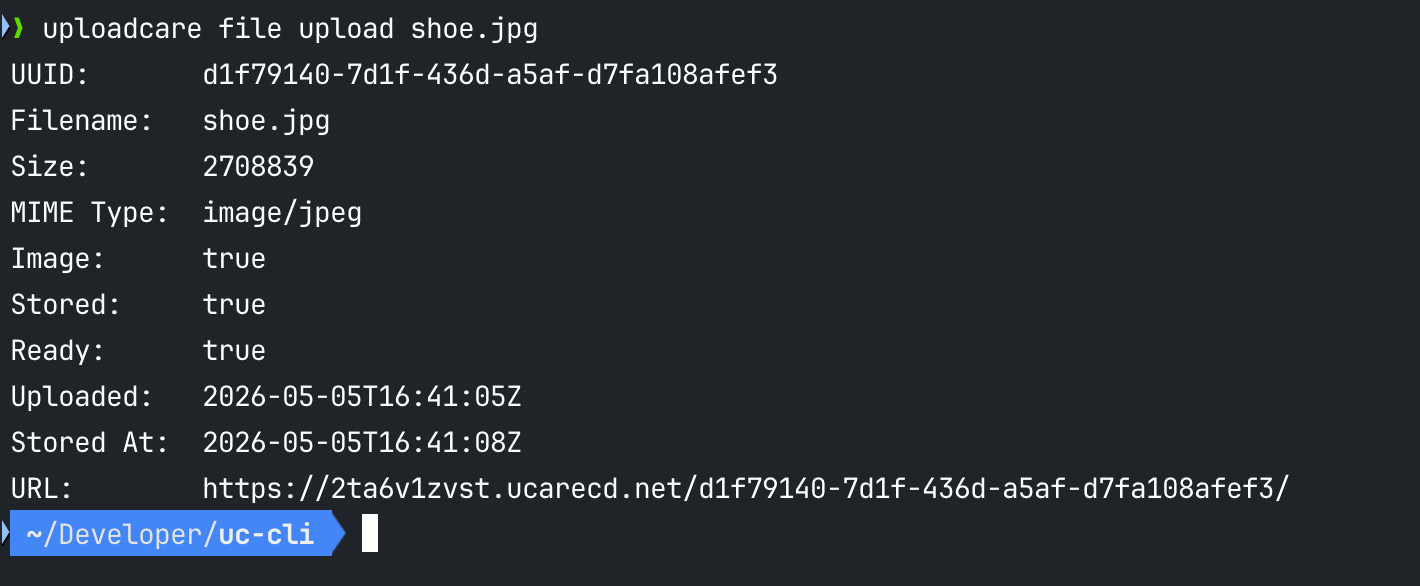 Uploadcare CLI file upload command output in the terminal
From there, you can perform various file operations in your project, like retrieve detailed info on a specific file, store unstored files, copy them to remote storage, or delete them:
uploadcare file list
uploadcare file info <uuid>
uploadcare file store <uuid>
uploadcare file delete <uuid>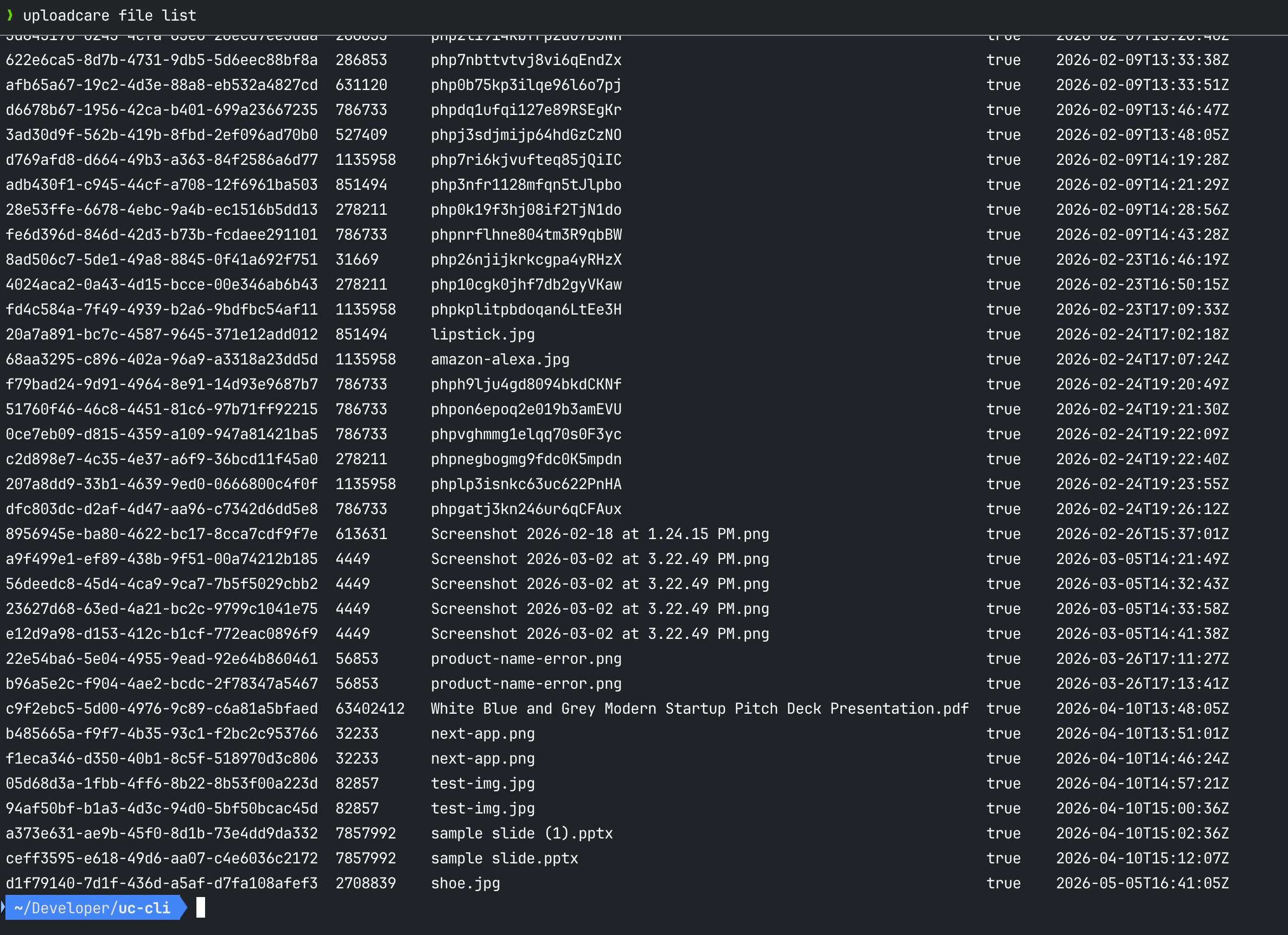 Uploadcare CLI file list output in the terminal
You can also upload directly from a URL, which is useful for migrating assets from another service without having to download them locally first:
uploadcare file upload-from-url https://example.com/photo.jpgStructured JSON output
Every command supports the —json output option. By default, the CLI gives you a human-readable table,
but with —json you can get the full structured output for use in scripts and pipelines.
# Full JSON output for a file
uploadcare file info <uuid> --json all
If you are processing a lot of files, selecting only the fields you need can help to keep the output payload smaller.
# Only uuid and size (a fraction of the full payload)
uploadcare file info <uuid> --json uuid,size
If you need to filter files further, you can use the jq expression directly without adding an extra step, for example:
# Extract just the UUIDs from a file list
uploadcare file list --jq '.[].uuid'
Batch operations with piping
Rather than running commands one file at a time, you can feed the output of one command straight into another using —from-stdin:
# Delete all unstored files
uploadcare file list --page-all --stored false --json uuid \
  | uploadcare file delete --from-stdin
The —page-all flag handles pagination automatically, so you don’t need to write loops or manage cursors to process large file sets.
Combine it with filters, and you can operate on thousands of files in a single pipeline.
Input is auto-detected as plain text (one UUID per line) or NDJSON (objects with a target field), so you can pipe from other tools without any format negotiation.
Safe iteration with dry-run
Before running any destructive operation at scale, you can use the —dry-run flag to preview exactly what would happen without making any changes:
uploadcare file list --page-all --stored false --json uuid \
  | uploadcare file delete --from-stdin --dry-run
This is particularly useful in CI/CD environments where you want to verify a cleanup or migration step before it actually runs.
Remove —dry-run when you’re confident, and the same command executes for real.
Beyond file management
While file management is the core use case for the CLI, it also provides access to various other capabilities.
-
Metadata: You can attach custom key-value pairs to any file, and read or update them later:
uploadcare metadata set <uuid> environment production uploadcare metadata get <uuid> environment -
Conversion: Conversion of documents or triggering video encoding jobs can now be done without touching the dashboard:
uploadcare convert document <uuid> --target-format pdf uploadcare convert video <uuid> -
Webhooks: Uploadcare webhooks already provide a lot of capability to handle complex workflows, and now you can create, update, and delete event webhooks entirely from your terminal:
uploadcare webhook list uploadcare webhook create --url https://your-endpoint.com/hook --event file.uploaded -
Add-ons: Executing Uploadcare add-ons like malware protection or background removal on a file and checking the status of the job is now just a couple of commands:
uploadcare addon execute <addon-name> <uuid>
uploadcare addon status <uuid>
Managing multiple projects
If you work across different environments (e.g., a staging and a production project),
the CLI has built-in support for named projects. To use them, define them once in ~/.uploadcare/config.yaml,
and you can switch between them on the fly without changing environment variables:
default_project: "Production"

projects:
  Production:
    public_key: "your_prod_public_key"
    secret_key: "your_prod_secret_key"
  Staging:
    public_key: "your_staging_public_key"
    secret_key: "your_staging_secret_key"
Then switch projects per-command or per-session without touching environment variables:
# Use a specific project for one command
uploadcare --project "Staging" file list

# Or set it for the session
UPLOADCARE_PROJECT="Staging" uploadcare file list
The credentials you set via flags or environment variables will always take precedence over the config file, so your CI/CD systems that inject secrets at runtime will work without any config changes.
A practical example: automated cleanup pipeline
Here is a real-world pipeline that deletes all unstored files, the kind of thing you would run on a schedule or as part of a deployment cleanup:
# Step 1: preview what would be deleted
uploadcare file list --page-all --stored false --json uuid
  | uploadcare file delete --from-stdin --dry-run

# Step 2: execute when you're ready
uploadcare file list --page-all --stored false --json uuid
  | uploadcare file delete --from-stdin
This provides you with a clean CI/CD workflow with just two commands: no SDK to import, no API calls to construct manually, no pagination code to write.
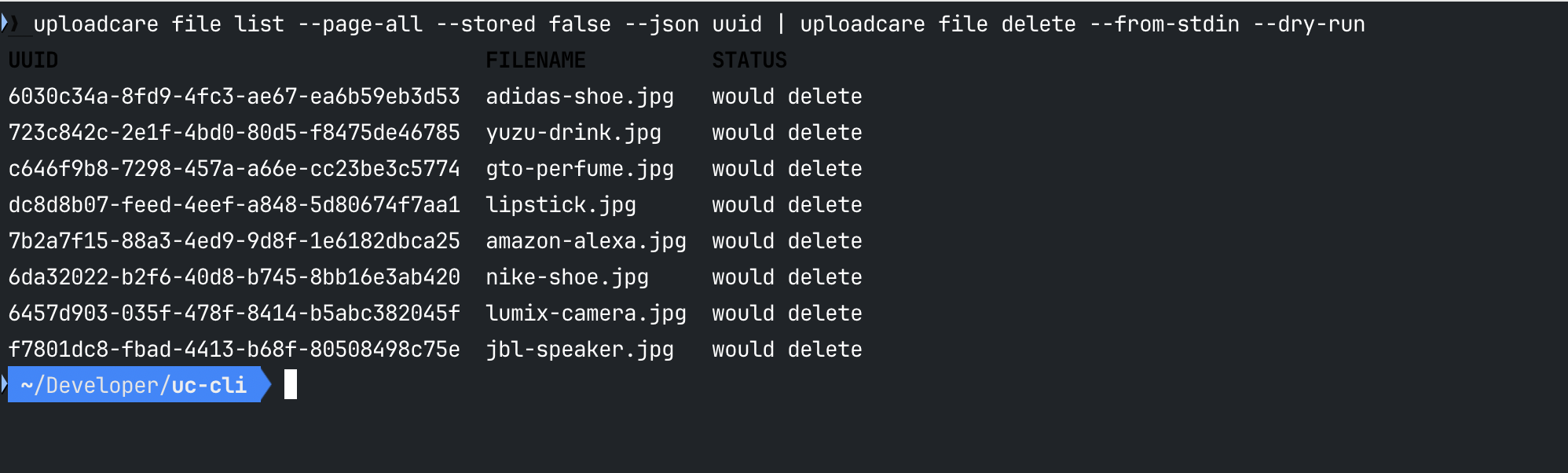 Uploadcare CLI dry-run output previewing files to be deleted
The —page-all flag handles the full file set regardless of size, and dry-run gives you a safety check before anything is removed.
Built for AI agents and automation
The CLI was also designed to work well in AI-driven workflows. A single command exposes the full CLI surface in machine-readable format:
uploadcare api-schemaThis gives any AI agent (Claude Code, Cursor, GitHub Copilot, or any LLM-based tool) everything it needs to invoke the CLI correctly:
all commands, flags, arguments, available JSON fields, and usage examples—no parsing —help output, no guesswork.
Combined with predictable exit codes (0 for success, 1 for API errors, 2 for bad input, 3 for missing credentials),
the CLI behaves reliably as a subprocess in any automated environment, whether that’s a shell script,
a GitHub Actions workflow, or an AI agent orchestrating a multi-step file pipeline.
Getting started
The CLI is available on GitHub, and the documentation covers installation, configuration, and a full command reference.
If you’re already using Uploadcare through the dashboard or SDK, the CLI is a direct way to automate parts of your workflow that don’t need a UI. And if you’re new to Uploadcare, it’s a good way to explore the platform interactively before wiring it into your application. Sign up for a free account to get your API keys and try it out.
Future posts in this series will go deeper into specific workflows: CI/CD automation, AI agent integration, and bulk migration patterns.
Happy uploading!