Best image cropping tools for developers in 2026
Image cropping is one of the most frequent yet underestimated tasks in modern web and mobile development. The tool you choose affects not only rendering quality but also performance, cost, and how easily you work with user-generated content.
This article breaks down the image cropping tools ecosystem: from lightweight JavaScript libraries to powerful CDN APIs that handle the heavy lifting. You will also learn the core terminology and get a bird’s-eye view of the available options.
What makes a good image cropping tool
In practice, usage context plays a major role when choosing the right tool. Key factors include where the processing happens, how many images you push through the pipeline, and whether you need automatic cropping decisions.
Manual cropping vs. automated smart cropping
Manual cropping is the most predictable scenario. The cropping area is explicitly defined so the results are stable. The approach shines in UGC and human-controlled conditions, but quickly loses its advantage with bigger image databases like cropping for e-commerce (multiple image variations) and generating previews for different device types.
Automated cropping, also known as smart cropping, works much better for this type of work. Features vary between vendors, but smart cropping usually includes:
- Defining key image regions (faces, objects, contrasting areas)
- Adaptive aspect ratios
- Other computer-vision-based features
Client-side vs. server-side vs. CDN-based cropping
Image cropping strategies fall into one of three main categories, depending on your app architecture.
Client-side cropping happens directly in the browser or app interface. You get instant visual feedback, which makes it ideal for interactive scenarios such as cropping profile pictures or editing images before publishing. You can make the cropping frame adjustable or have pre-set corner coordinates. However, it is recommended to always let end users validate the final result.
Server-side cropping runs on your app’s backend. Choose this approach when you need consistent, replicable results that meet strict criteria. The approach is especially convenient when cropping is a part of an automated pipeline. For example, generating multiple image versions right after uploading or during a build process.
CDN-based cropping lets you define the cropping area directly in the URL. The transformation happens on CDN servers, and the result gets cached at edge nodes so the transformation doesn’t happen twice. This lowers the server load and increases delivery speed, especially for intense traffic scenarios.
To choose the best option, identify the main bottleneck in your current architecture and select the cropping method that avoids it most effectively.
Key evaluation criteria
On the surface, most of the tools cover basic cropping needs. But they can do it in different ways, so the devil is in the details. Consider the following criteria during your evaluation:
- Integration complexity: How much code and infrastructure adjustments you need to start using the tool
- Smart cropping support: Whether the tool offers automated cropping features
- Format support: Working with WebP, AVIF, and other modern or niche-specific formats
- Performance and scalability: How well the tool handles traffic spikes and large numbers of images
- Pricing model: Whether it is open-source, fixed fee, or SaaS, and if it is possible to estimate the upcoming costs as the system grows
A good cropping tool delivers stable results without forcing you to redesign your architecture. In many cases, it is a compromise between control, automation, and support costs. “Good enough” serves as the most practical metric here.
Best client-side image cropping libraries
For client-side cropping, the requirements usually focus on the tool’s UX and on how easily it integrates with frontend frameworks and libraries. Here are several popular client-side cropping tools compared against the evaluation criteria.
Cropper.js: Minimalist cropping before you send images to the server
Cropper.js is a classic client-side cropper without extra features or abstractions. Despite its minimalistic design, the tool is one of the most established tools for this use case with 13.8K GitHub stars and 2.4K forks as of April 2026.
The library focuses on cropping and passing the cropped data for further processing. Use it for basic client-side cropping when you need live previews or when you plan to send cropped images to the server. Typical use cases include profile picture cropping and UGC cropping before upload. Visit their playground to get a better idea of how the tool works.
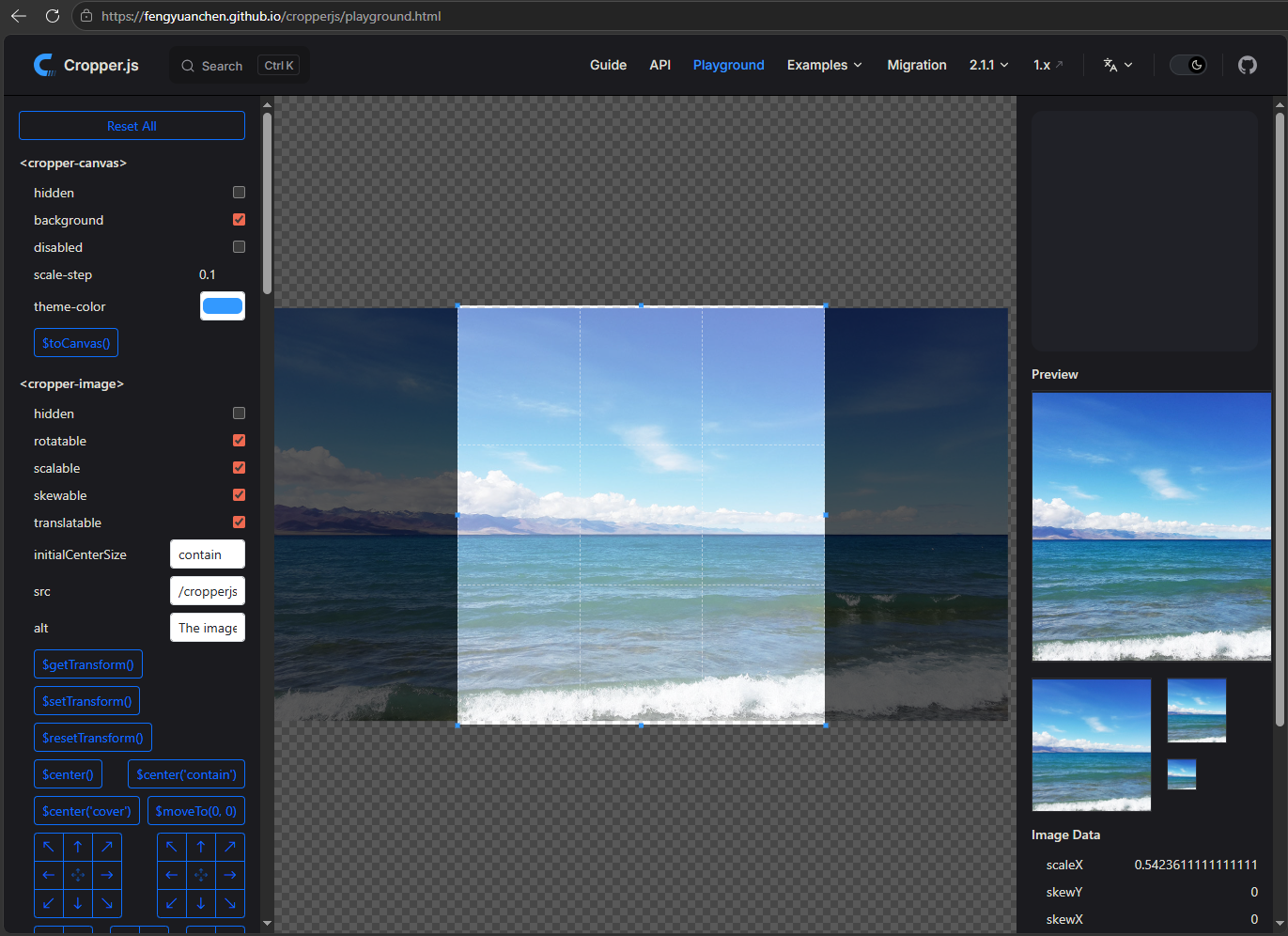 Screenshot of Cropper.js demo interface with a seascape image being cropped
Cropper.js does not offer smart or content-aware cropping. The library focuses only on basic pre-upload processing, which keeps its bundle size very small: 11.9 KB minified+gzipped.
Here is how Cropper.js performs against the evaluation criteria:
-
Integration complexity: Easy. You pass an image element to Cropper.js and render the result into another
<img>element or send the cropped image data directly to the server. -
Smart cropping support: No.
-
Format support: JPEG, PNG, WebP, SVG, AVIF. As a browser-based tool, Cropper.js supports all formats a browser can display in an
<img>element. -
Performance/scalability: Good for standard browser-based cropping. Performance is limited by the user’s device resources when handling large images or heavy editing workloads.
-
Pricing model: Free and open-source.
react-easy-crop: Hook-based image and video cropping for React apps
Unlike Cropper.js, which is framework-agnostic, react-easy-crop is developed specifically for React. It follows the hook-based approach and works directly with React’s state and event system. This design makes integration smooth, especially when you need to sync the cropping state with other UI elements.
The package uses a different interaction model compared to classic crop-box tools: you move an image inside a fixed area, not the other way around. This approach feels natural in mobile upload flows.
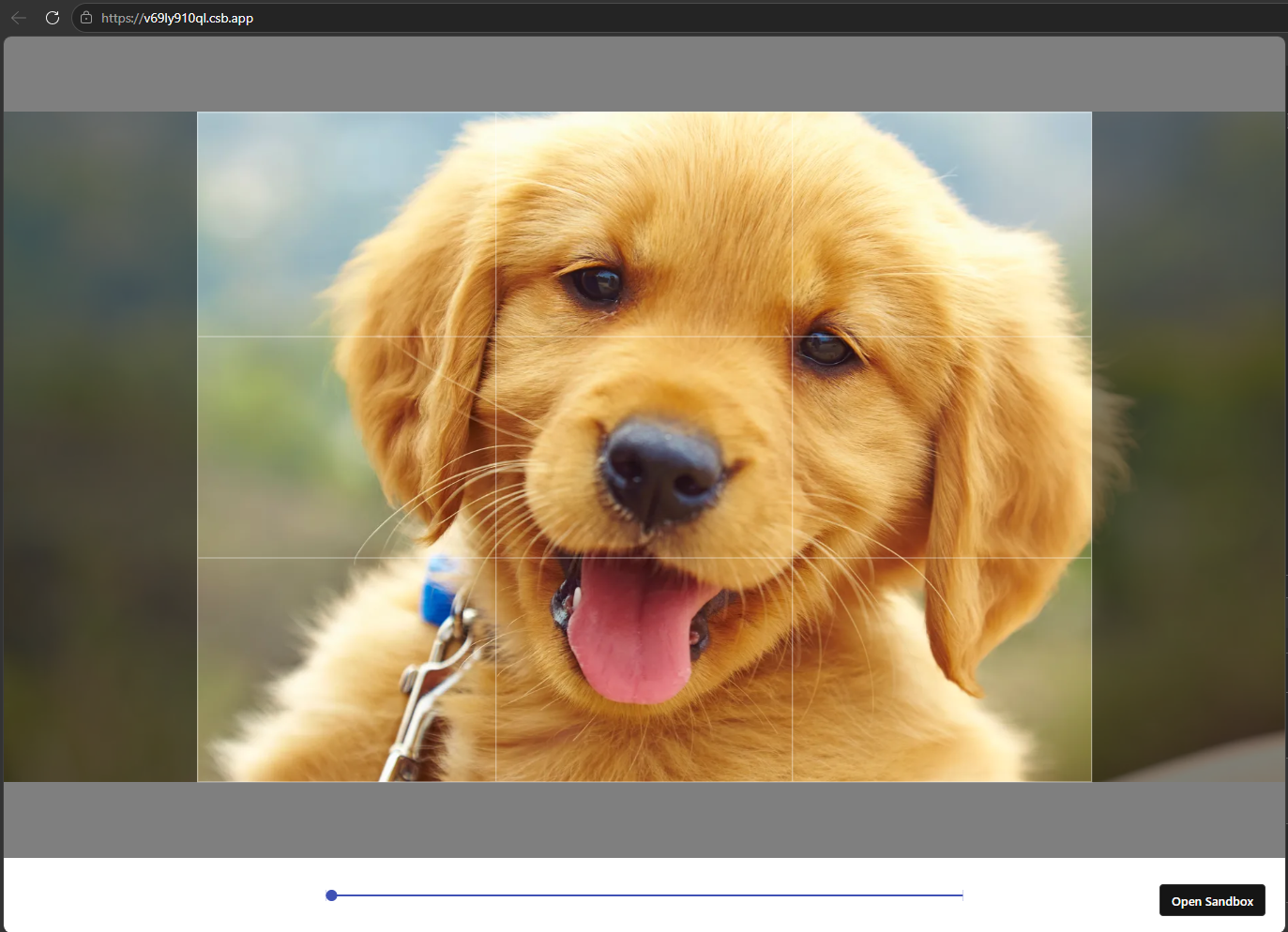 react-easy-crop interface rendered on a web page
Embedded interactivity is the main strength of this tool. You get out-of-the-box support for zoom, rotation, drag, and pinch-to-zoom gestures that work well on touch devices. Video cropping support is another strong advantage, since it’s a feature rarely found in lightweight cropping libraries. All of that is compressed into 6.7 KB of bundle size.
react-easy-crop differs from its sibling library, react-image-crop. The latter is more of a minimalistic component for cropping area selection. If you need Cropper.js-style functionality in your React app, react-image-crop works well. For a more polished mobile user experience, react-easy-crop usually gives you greater flexibility.
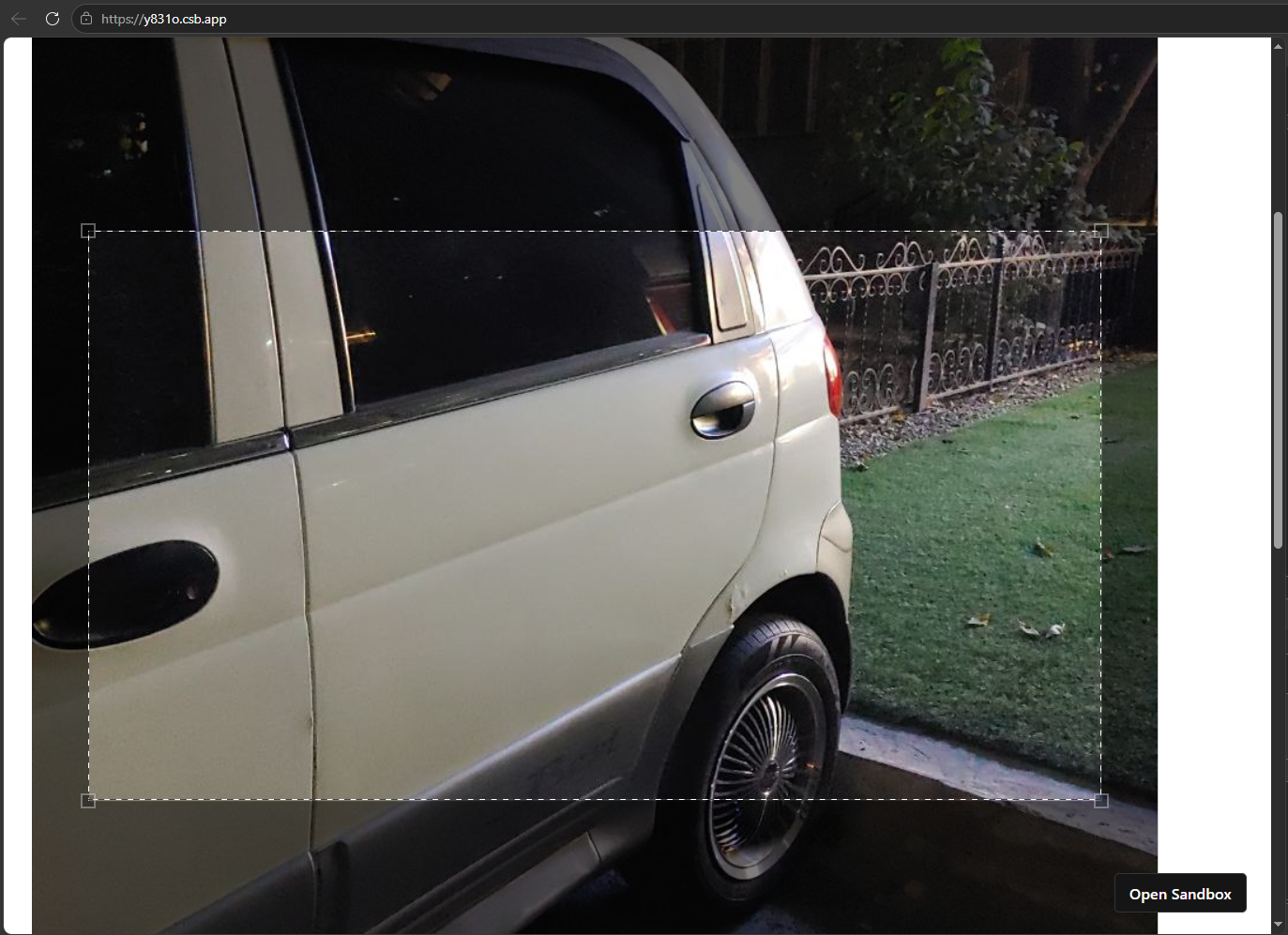 react-image-crop interface rendered on a web page
Despite its clean design, react-easy-crop is not a complete cropping solution. It mainly functions as a control for the UI layer. The library returns a set of cropping coordinates that you pass to the next stage of your pipeline, whether that is a backend tool, a CDN, or another processing step where the actual image cropping happens.
-
Integration complexity: Easy, works naturally in React’s paradigm.
-
Smart cropping support: No.
-
Format support: JPEG, PNG, WebP, SVG, AVIF, and other browser-supported formats.
-
Performance and scalability: Good for standard browser-based cropping. Performance is limited by the user’s device resources when handling large images or heavy editing workloads.
-
Pricing model: Free and open-source.
Pintura: Full-featured client-side image editor
Pintura stands out among client-side image cropping libraries thanks to its wide range of features and its pricing model. Unlike libraries focused solely on cropping, Pintura provides cropping alongside many other image manipulation tools, including filters, annotations, and markup.
This tool offers strong integration options. There’s native support for modern frontend frameworks. Plus, the API lets you customize the interface extensively. This flexibility helps the editor blend seamlessly with your product’s design and style.
For cropping, the tool delivers everything you expect from such a product: aspect ratio presets, zooming, rotation, and full touch interaction support.
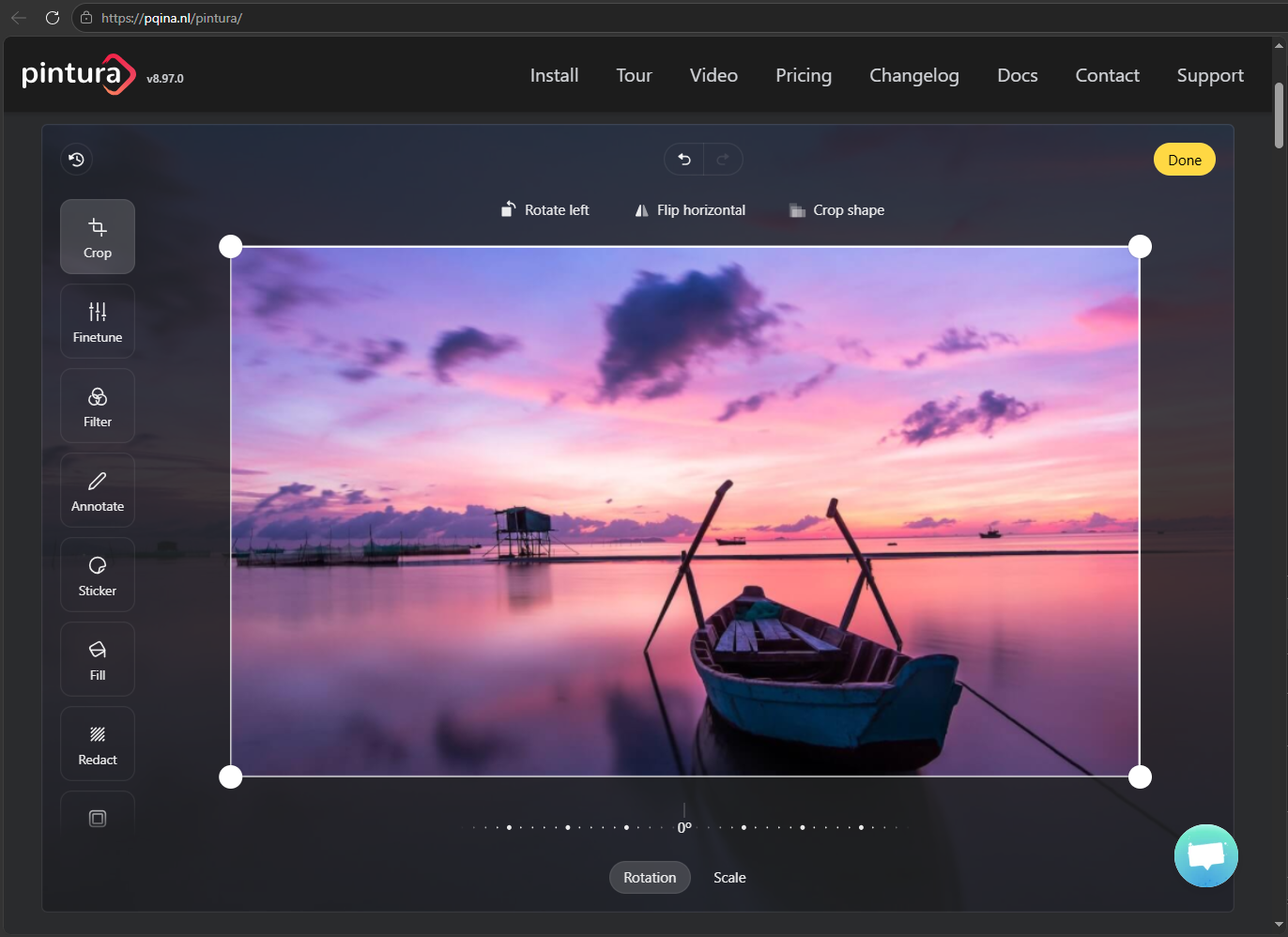 A screenshot of Pintura cropping tool
The big question here is its pricing model. Pintura is commercially licensed, with per-developer pricing. For small projects, this can cost more than supporting simple open-source alternatives.
This price becomes justified in two cases:
First, when you’d otherwise need to combine multiple libraries to build a full editor. In that case, licensing pre-built modules is often more cost-effective than developing and maintaining an in-house solution.
Second, when the upload and editing flow itself forms a core part of your product’s value, like in creative tools or content management systems. When users expect a full editing experience, the value of a polished, ready-to-use widget outweighs the cost savings of free alternatives.
Best open-source tools for server-side image cropping
Client-side libraries work well for interactive cropping before upload. However, image processing rarely ends there. As covered earlier, many tools only output cropping coordinates for later processing. This and many other cases are covered by server-side image cropping tools. Read about them below.
Sharp: High-performance image processing for Node.js
Sharp is a go-to module for rapid Node.js image processing. Powered by libvips, a low-level image processing library optimized for fast streaming operations and low memory usage. According to the official website, Sharp outperforms ImageMagick by 4x-5x.
Sharp excels at image cropping under tight resource or latency constraints. This makes it a great fit for thumbnail generation, responsive variants, and batch pipelines, especially when you perform several operations on each input image.
Cropping in Sharp forms part of a pipeline rather than a standalone operation. You can easily combine it with resizing, format conversion, and other transformations:
sharp(input)
.extract({ left: 320, top: 80, width: 100, height: 100 })
.resize(400, 400)
.toFile("output.webp")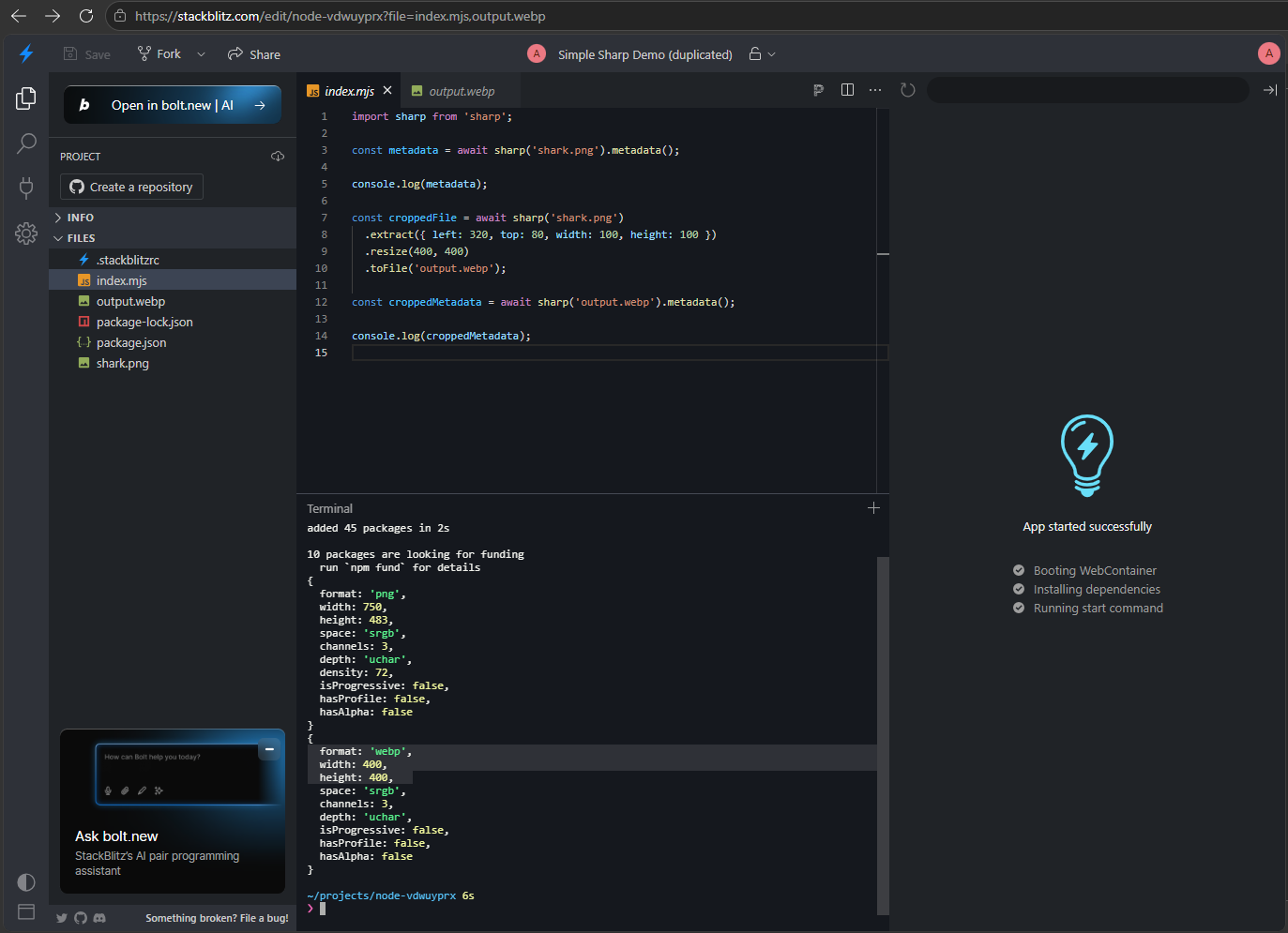 Simple cropping and format conversion chaining in Node.js Sharp package
Fork the gist and experiment.
Sharp handles the technical side of image processing very well, but offers no smart cropping features as we know those today. Yes, there are strategies like attention and entropy that allow for cropping the most information-dense region. However, these methods rely on assumptions and do not deliver the same results as true face-aware or object-aware cropping.
Here is how Sharp performs against the evaluation criteria:
-
Integration complexity: Low to medium. Simple Node.js integration and good API for image processing pipelines. The main challenge lies in strategically chaining the operations.
-
Smart cropping support: None. Sharp supports technical cropping strategies but offers no AI-based or content-aware features.
-
Format support: High. Supports popular formats and conversions. A good fit for image optimization and delivery pipelines.
-
Performance and scalability: Very high. Built on libvips, Sharp ranks among the best open-source options for batch server-side image processing.
-
Pricing model: Free/open-source. The main cost is server resources, not the tool itself.
ImageMagick: The universal command-line image processor
ImageMagick is one of the oldest multi-purpose tools for performing image manipulations. Unlike Sharp, it is not tied to a certain ecosystem. You can use it as a standalone command-line tool or integrate it into shell-based pipelines.
 Good ol’ wizard from the 90s
The main reason ImageMagick is still in wide use today is its large format support base: 100+ formats, excluding sub-formats, ranging from common ones like JPEG, PNG, and WebP to many rare and legacy formats. This broad compatibility makes it especially useful when dealing with unpredictable input data or images coming from diverse sources.
You interact with ImageMagick through the command line. A typical crop operation looks like this:
magick input.jpg -resize 800x800^ -gravity center -crop 400x400+0+0 output.jpgThis command “chains” operations similarly to Sharp, but in a shell environment. Here is what each part does:
magick input.jpg: Launches ImageMagick (v7+) and loads the “input.jpg”.-resize 800×800^: Scales the image to 800×800, and uses the^modifier to cover the region entirely, similar tobackground-size: cover;in CSS.-gravity center: Sets the center of the image as the reference point for the next operations.-crop 400×400+0+0: Crops the 400×400 rectangle around the gravity center, without moving the frame (+0+0).
The CLI approach may look flexible at first glance because it is low-level. In production environments, however, you usually wrap ImageMagick inside backend services or language-specific libraries such as Imagick for PHP or Wand for Python.
When you compare performance, Sharp clearly outperforms ImageMagick in throughput and memory usage. Thanks to its libvips foundation, Sharp handles mass image processing scenarios more efficiently. ImageMagick serves as a reliable Swiss Army knife, but it becomes less efficient in high-load pipelines.
Back to the list:
-
Integration complexity: Medium. CLI-first tool with versatile API, but less developer-friendly than platform-specific tools like Sharp. Often used in wrappers or shell scripts. The integration process is simple on a basic level, but may become more complex as the system evolves.
-
Smart cropping support: None. There are region-based operations, but no semantic and content awareness.
-
Format support: Very high. It handles both modern and legacy formats, which is one of its strongest advantages.
-
Performance and scalability: Medium. You can use it for batch processing, but you often achieve better results by combining it with faster tools for the main workload.
-
Pricing model: Free / open-source.
In modern web applications, ImageMagick frequently works alongside faster solutions and handles edge cases.
Thumbor: Open-source smart cropping server
Thumbor stands out in two important ways. First, it is the only free tool in the list that is built around smart cropping features, besides CDNs. Secondly, it is a complete server for image processing, not a library that you import into your project.
Smart cropping in Thumbor relies on focal point detection.
It offers two built-in detection algorithms: face detection and feature detection, both using OpenCV.
The server first looks for faces. If it doesn’t find any, it switches to feature detection.
This approach preserves important image regions in operations like cropping and resizing for different aspect ratios.
It comes in handy in places where manual cropping is too expensive or impossible,
like when art-directing using <picture> HTML tags for thumbnails, previews, and e-commerce catalogs.
Here is a simple cropping example:
http://localhost:8888/unsafe/300x300/filters:vertical_align(middle)/https%3A%2F%2Fgithub.com%2Fthumbor%2Fthumbor%2Fraw%2Fmaster%2Fexample.jpgWhere:
http://localhost:8888/: The URL of the Thumbor server, usually Docker-based/unsafe/: Insecure unsigned request, used here for demonstration/300×300/: The target crop size/filters:vertical_align(middle): Centers the cropping area vertically/https%3A%2F%2Fgithub.com...: The input image URL (must be properly URI-encoded)
From a software design perspective, Thumbor is a Python-based HTTP service you deploy on your own machine. This design brings new possibilities for microservice setups, but it also adds deployment complexity. You need to manage a separate service, caching, URL signatures and security, and high-load instance scaling. Looking at the docs, it feels like Thumbor developers went the extra mile here by introducing Lazy Detection and Redis support for async operations.
Infrastructure requirements become a key factor when you choose Thumbor over other solutions. For basic server-side cropping, it can feel like overkill. However, if you need a self-hosted smart cropping tool without relying on commercial SaaS, Thumbor is the best option.
Evaluation:
-
Integration complexity: Medium to high. On average, higher than for stack-specific libraries like Sharp. You deploy Thumbor as a separate service, which adds infrastructure work. Client wrappers and URL builders (libthumbor and django-thumbor for Python, thumbor-client and ThumborJS for Node.js, and others) simplify integration and lower the entry barrier.
-
AI / smart crop support: High. Thumbor leads free tools in this area. It delivers smart cropping through face and feature-point detection.
-
Format support: High. Works with popular modern web formats and typical server-side image processing scenarios. Doesn’t beat ImageMagick in breadth, but enough for the majority of web needs.
-
Scalability/Performance: High (with infrastructure overhead).
-
Pricing model: Free and open-source.
Best image cropping APIs and CDN services
Thumbor has partially made it to the image delivery territory: URL-based transformations, smart crop, and on-demand image processing — a model that starts to overlap with image CDN architectures.
From here, it makes sense to look at commercial services. These platforms combine the same capabilities with global CDN delivery, more advanced smart cropping, automatic format optimization, and fully managed infrastructure.
Uploadcare: URL-based smart crop with built-in file uploader
While the previous tools often split upload, processing, and delivery across different layers of the stack, Uploadcare stands out by combining that entire pipeline into one platform: upload → crop → optimize → deliver. That’s one of its key differentiators in this category.
Once you upload an image, the original file remains unchanged. All transformations happen on-the-fly through URL parameters and get cached at the edge nodes.
Uploadcare offers commercial-grade smart cropping features. Smart Crop has an AI algorithm in its core that detects objects in images. The algorithm uses three methods of image analysis:
- Face detection (locates human faces)
- Object detection (locates the most visually important areas of an image)
- Corner points detection (analyzes image pixels to find the high contrast corners in the image. Useful for abstract, landscape, and art images)
Here is an example of smart cropping in action:
https://6ca2u7ybx5.ucarecd.net/f1a2ecfb-f801-4186-b109-f050ab6d0225/-/scale_crop/300x300/smart/Here’s a breakdown of the URL:
https://6ca2u7ybx5.ucarecd.net/: Your Uploadcare subdomainf1a2ecfb-f801-4186-b109-f050ab6d0225: Unique source image identifier/-/: Separator/scale_crop/: Scales the image to the target resolution and crops the rest300×300: Target resolution/smart/: The actual smart feature, centers the crop around the main part of the image
 An example of Uploadcare’s Smart Crop feature
As for the visual manual cropping, this happens in the Uploadcare File Uploader widget. A user uploads an image and sets up cropping regions for further use in your application. For user-generated content scenarios, this alleviates the need for implementing separate image processing pipelines.
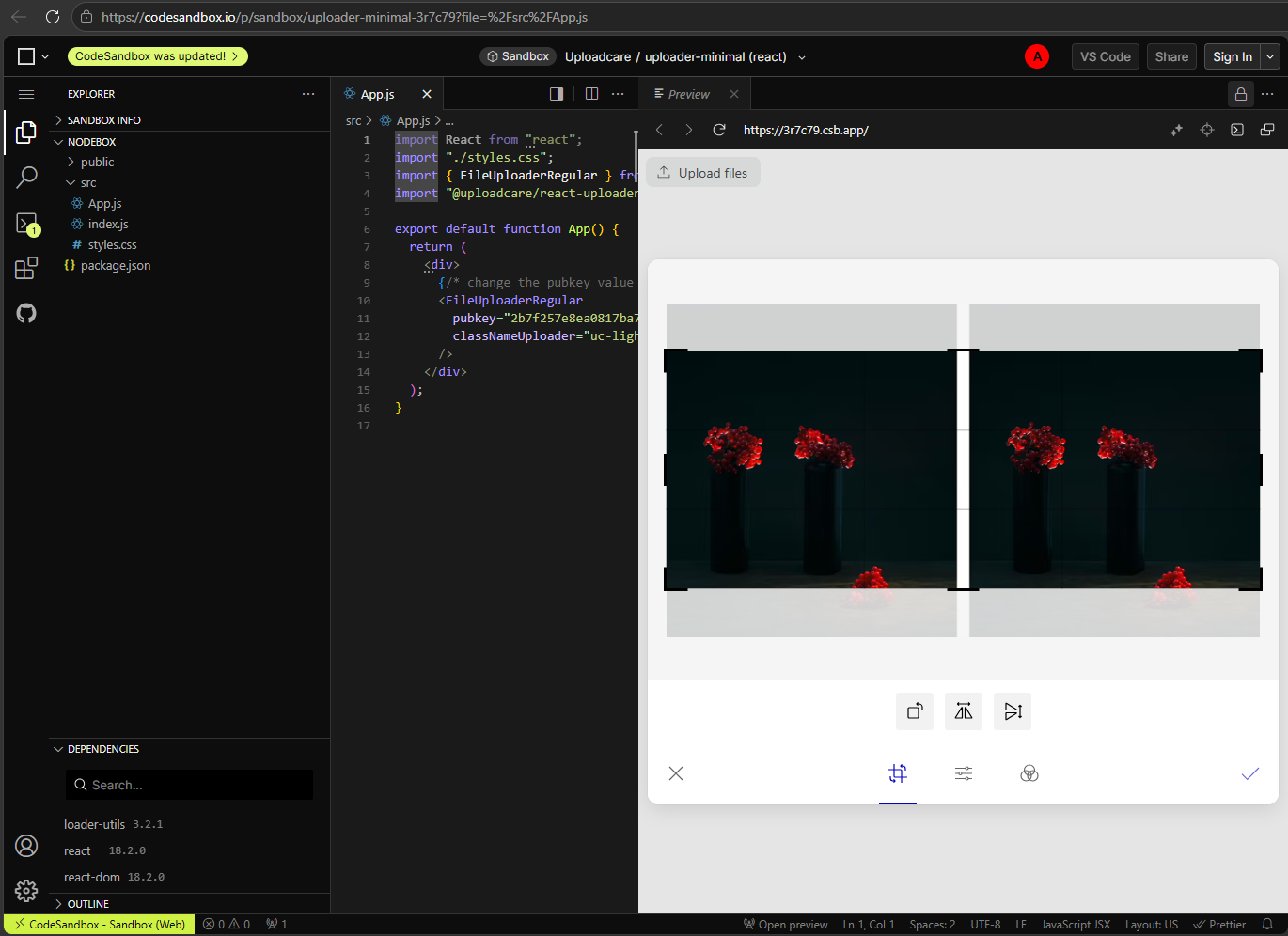 An image inside Uploadcare File Uploader Widget
Automated cropping plays a major role in Uploadcare’s Adaptive Delivery feature. The platform automatically selects the best format and compression level for each user’s device, including next-gen formats such as AVIF and WebP.
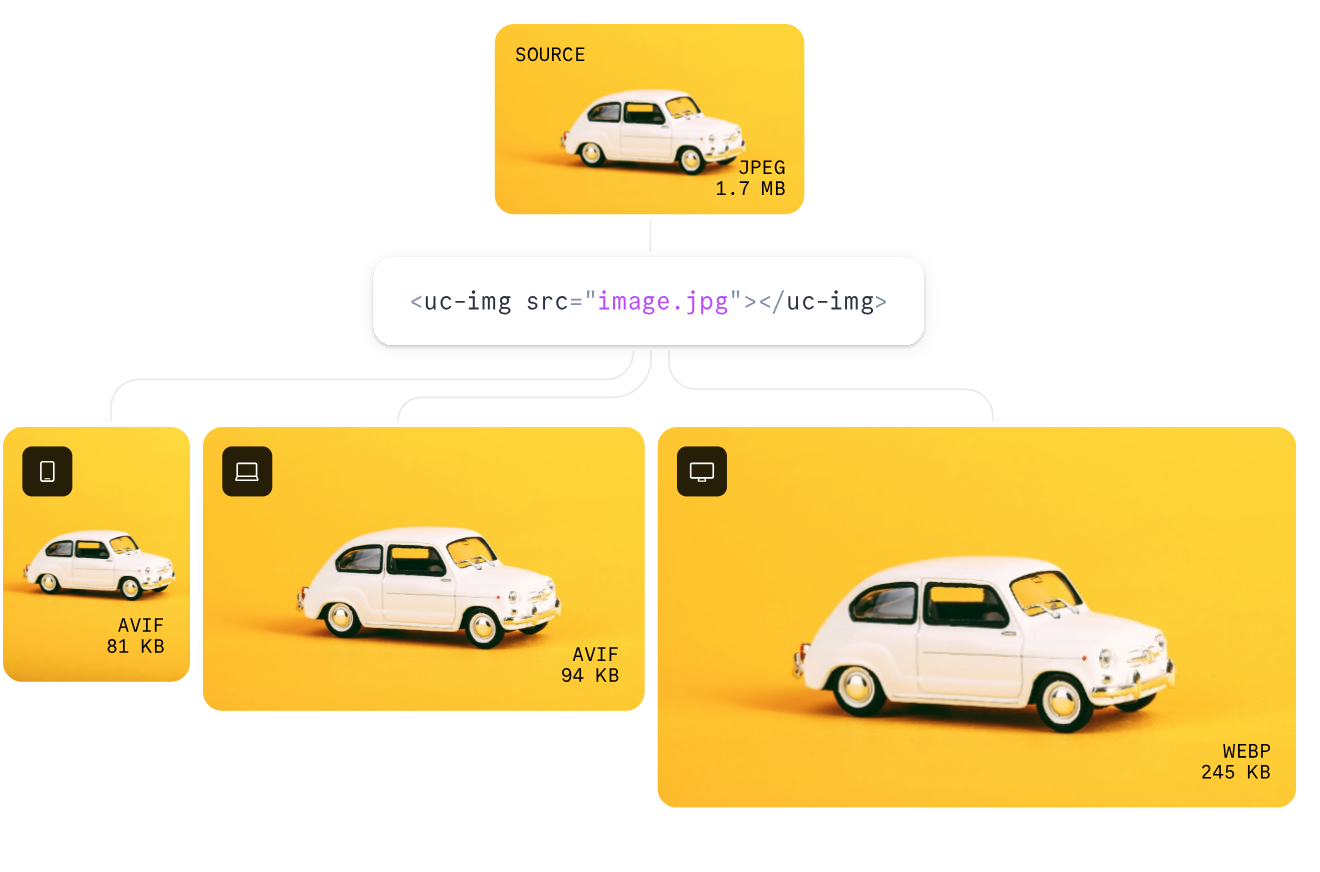 Uploadcare’s Adaptive Delivery infographic
Although the platform itself is framework-agnostic, there are SDKs that wrap uploading and transformations for Python, PHP and other stacks. Besides the vanilla version, the File Uploader widget integrates nicely with popular UI frameworks: React, Vue, Angular, Svelte.
Context matters when comparing a full-featured Image CDN like Uploadcare to narrower tools such as Cropper.js or Sharp. Here, cropping is a part of the bigger picture, and choosing Uploadcare for cropping also gives you room to grow as your needs expand into storage and global image delivery.
Evaluation:
-
Integration complexity: Easy to medium. The integration boils down to working with SDK for your app’s language and URL-based API. The main challenge is not the integration itself, but understanding the platform approach (upload + transformation + delivery in a single pipeline). Once grasped, it is much easier than managing self-hosted solutions.
-
AI/smart crop support: High. Supports smart cropping prioritizing faces, objects, and then contrast areas. Uploadcare’s model goes well beyond the basic calculation methods used by tools like Sharp.
-
Format support: High. Aimed towards native Web formats, optimization is built into the delivery pipeline.
-
Scalability and performance: Very high. Backed by CDN and edge infrastructure, Uploadcare offers reliable scalability without any need to manage your own image processing infrastructure.
-
Pricing model: Commercial (SaaS). The platform follows a subscription model, but offers a free tier with limited capabilities.
Cloudinary: AI-powered cropping with full media management
Cloudinary is often considered the most “full-featured” player in the image processing and delivery market. As with Uploadcare, cropping forms part of a much broader media pipeline.
For smart cropping, Cloudinary uses g_auto,
a content-aware algorithm that detects the cropping focal point and uses it as an anchor for further transformations.
The object recognition feature is shared with image tagging functionality.
Cloudinary uses Imagga add-ons for more sophisticated cropping needs, and for determining image contents.
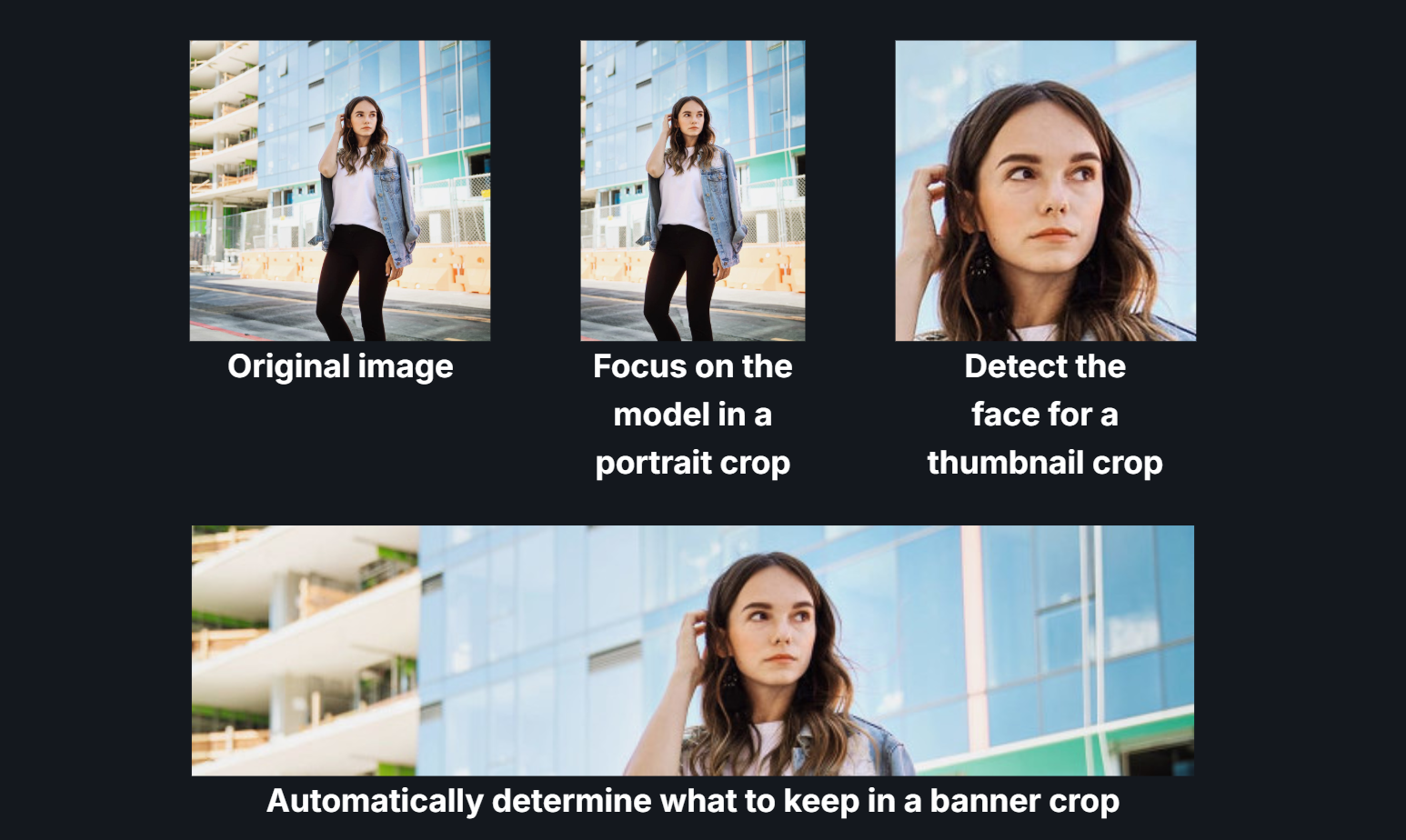 Cloudinary crop demo
Cloudinary also offers generative fill (essentially a “reverse crop”) that intelligently fills empty areas when you change aspect ratios or resize images.
This versatility comes at a cost. Due to the platform’s size, the integration process can feel heavier than with more focused CDNs like Uploadcare or imgix.
In short, you can certainly crop images with Cloudinary, but cropping is rarely the main reason to choose the platform. Cloudinary works best as a complete media infrastructure solution that handles images, videos, and other media types out of the box.
-
Integration complexity: Medium to high. The integration process is well documented, but the platform itself is on the heavier side of the spectrum. Like with other CDNs, you need to understand the concepts of transformations and URL-based APIs. The learning curve is steeper than with simpler tools, though it remains manageable for most use cases.
-
AI/smart crop support: Very high. Supports content-aware cropping, face/object detection, and Imagga for tagging.
-
Format support: High. Popular Web image formats + videos.
-
Scalability and performance: Very high. Built as a global CDN platform with caching. Scales well for media-heavy products.
-
Pricing model: Commercial (SaaS) and positioned at the higher end.
Imgix — Image transformation layer on top of your storage
The key difference about Imgix is that it is not a storage platform. Instead, it connects to your existing origin, such as S3, Google Cloud Storage, etc, and serves as a transformation and delivery layer. This focus lets Imgix deliver faster and more robust performance for high-traffic applications.
Like other image CDNs, Imgix is built around a URL approach. You define all transformations directly through request parameters instead of a separate processing backend.
Imgix performs image transformation on its edge infrastructure, meaning that requests are served through CDN, but processing and caching happen on the edge node closest to the user. This is why Imgix is a good fit for high-traffic, image-heavy products.
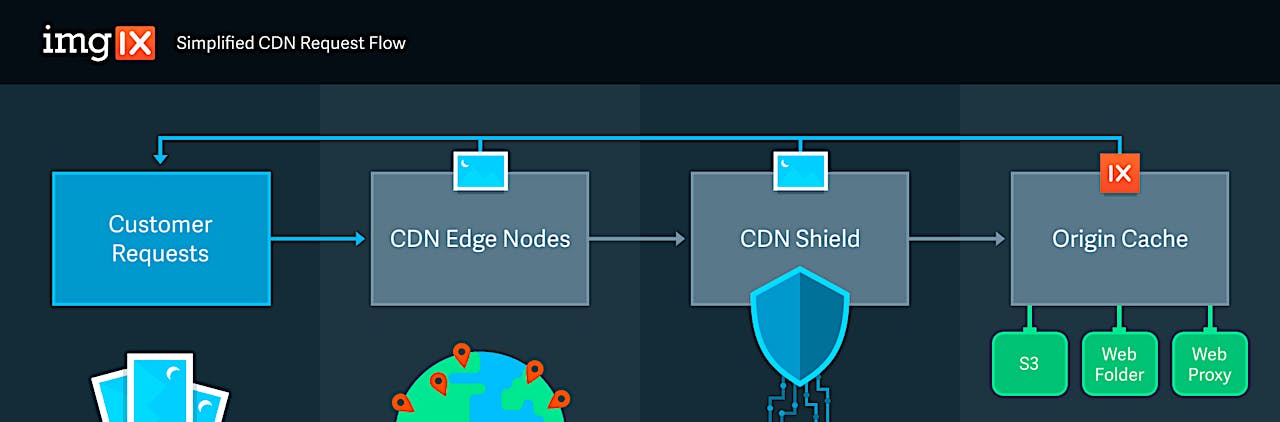 Imgix simplified CDN request flow
Compared with full platform solutions, the trade-off is clear. The Imgix concept is simpler because it focuses only on transformation and delivery layers. You remain responsible for the rest of the pipeline, including upload flows and asset management.
- Integration complexity: Medium, comes down to attaching your origin source for images and working with URL parameters.
- AI/smart crop support: High. Supports smart cropping, object removal, and generative outpainting.
- Format support: High. Supports modern web formats, optimized via CDN.
- Scalability / performance: Very high, the key factor to consider when choosing Imgix.
- Pricing model: Commercial (usage-based)/SaaS. No infrastructure overhead.
How to choose the right image cropping tool
Start by defining your use case instead of focusing only on specific features.
For client-side image cropping, where users crop an image before uploading, libraries such as Cropper.js and react-easy-crop work well. When looking for something more polished, consider Pintura.
For server-side image cropping, like generating thumbnails, bulk cropping, and building image pipelines, the go-to tools are Sharp, ImageMagick, and Thumbor.
For high-traffic and image-heavy websites, Image CDN platforms such as Uploadcare and Cloudinary provide complete pipelines. Alternatively, you can choose simpler, more focused tools like Imgix that handle only transformation and delivery.
How to crop images with Uploadcare’s Smart Crop API
Let’s start with a sample image:
 Sample image for demonstration purposes
With Uploadcare, you can start working with Smart Crop in incremental steps, and explore more as you tweak the parameters.
For example, basic smart cropping is done by using scale_crop in smart mode:
https://6ca2u7ybx5.ucarecd.net/14d84792-dd2e-43d3-b1f7-87d46d378c7d/-/scale_crop/800x600/smart/ An image cropped with Uploadcare’s Smart Crop
This URL scales the image to the specified dimensions while automatically keeping the most important area in the frame.
In the example above, smart is a shorthand for face → object → corner points prioritization.
If the image contains no faces, the algorithm moves to object recognition and then falls back to corner points.
For more precise control, you can set the priorities explicitly:
.../-/scale_crop/800x600/smart_faces_objects/Or prioritize objects first:
.../-/scale_crop/800x600/smart_objects_faces/This approach works especially well when composition matters more than faces, like with product imagery or thumbnails.
URL syntax for face-centered cropping:
.../-/crop/face/1:1/ face-detection cropping algorithm
Frequently asked questions about image cropping tools
What is the difference between cropping and resizing an image?
Cropping removes parts of an image to change its composition or aspect ratio.
Resizing changes the overall dimensions without removing any content. During cropping, you discard pixels.
During resizing, you scale the entire image up or down.
Tools such as Uploadcare’s scale_crop combine both operations: they resize the image first and then crop it to fit the target frame.
What is smart cropping and how does it work?
Smart cropping automatically identifies the most important part of an image and keeps it in focus during the crop.
Different tools implement this in various ways: some rely on face detection, others use object detection or visual saliency.
For example, Uploadcare prioritizes faces, then objects, then fallback points, while Cloudinary uses g_auto to dynamically choose a focal area.
The main goal is to avoid cutting off relevant content when you generate images for different aspect ratios.
Can I crop images automatically without a design tool?
Yes. Modern image APIs and CDN services allow cropping through URL parameters without any visual editor. Tools like Uploadcare, Imgix, Cloudinary, and ImageKit generate cropped versions on the fly using URLs. This approach allows fully automated cropping in backend workflows or image delivery pipelines, without the need for manual design tools.
What is the best free image cropping tool for developers?
For client-side use, Cropper.js and react-easy-crop are common free options. For backend processing, Sharp and ImageMagick are open-source and widely used. If you need smart cropping with minimal setup, Thumbor offers an open-source server-based solution. Image CDN services like Uploadcare, Cloudinary, and imgix also provide free tiers, which are useful for small-scale or prototype projects, though they come with usage limits.
How does CDN-based image cropping improve performance?
Instead of processing images on your own backend, the CDN handles requests and caches results for reuse. This reduces latency, offloads compute from your infrastructure, and allows dynamic generation of multiple image variants without storing them manually. Services like Uploadcare use this model to combine cropping, optimization, and delivery in a single request flow.