Adding video to an application is more than just storing a file. For video to play well on
every device and connection, it needs transcoding, adaptive bitrate streaming, and a CDN. That
usually means either building and maintaining a pipeline or paying a video vendor by the
minute.
With Uploadcare Video CDN, you don’t have to do
either. You upload one source file and choose the codecs (H.264, H.265) and resolutions
(up to 4K) you want. You get back an adaptive stream that serves the right rendition to
each viewer. It runs through the same pipeline you use for images and files, and you pay
by operations, with no per-minute fee.
Here’s a video walkthrough of adaptive bitrate streaming in Uploadcare:
What the adaptive bitrate streaming settings control
Uploadcare Video CDN encodes a single source file into several renditions and delivers the
rendition that best fits each viewer’s device and connection. The settings let you decide
exactly what that ladder looks like:
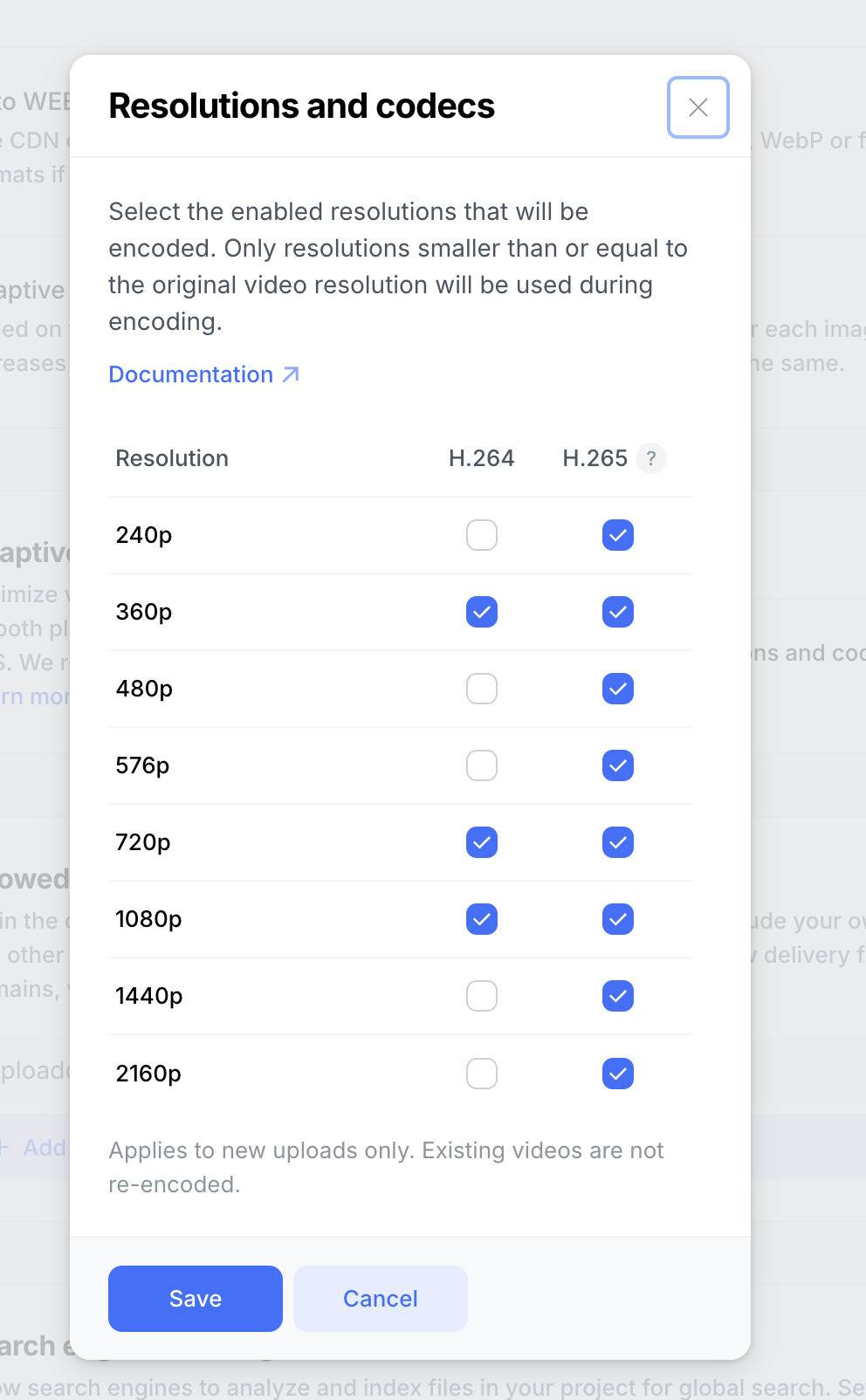
Codecs: You can choose between H.264 and H.265, or both, per rendition.
Resolutions: You can choose resolutions from 240p to 2160p (up to 4K) for
high-quality videos.
Reusable streaming profiles: Save a codec-and-resolution configuration once and
apply it to all video files in a project, so every upload follows the same rules.
To turn it on, go to your project’s delivery settings and toggle on adaptive bitrate
streaming, then select the codecs and resolutions you need.
Adaptive streaming settings panel
When you enable adaptive bitrate streaming, video delivery runs over HLS on a global CDN. It’s
fully encrypted and backed by a 99.9% uptime SLA.
By default, the video processing is asynchronous, so every rendition is generated as a
background job. The /adaptive_video/ URL serves the stream when it’s ready.
How adaptive bitrate streaming works in Uploadcare
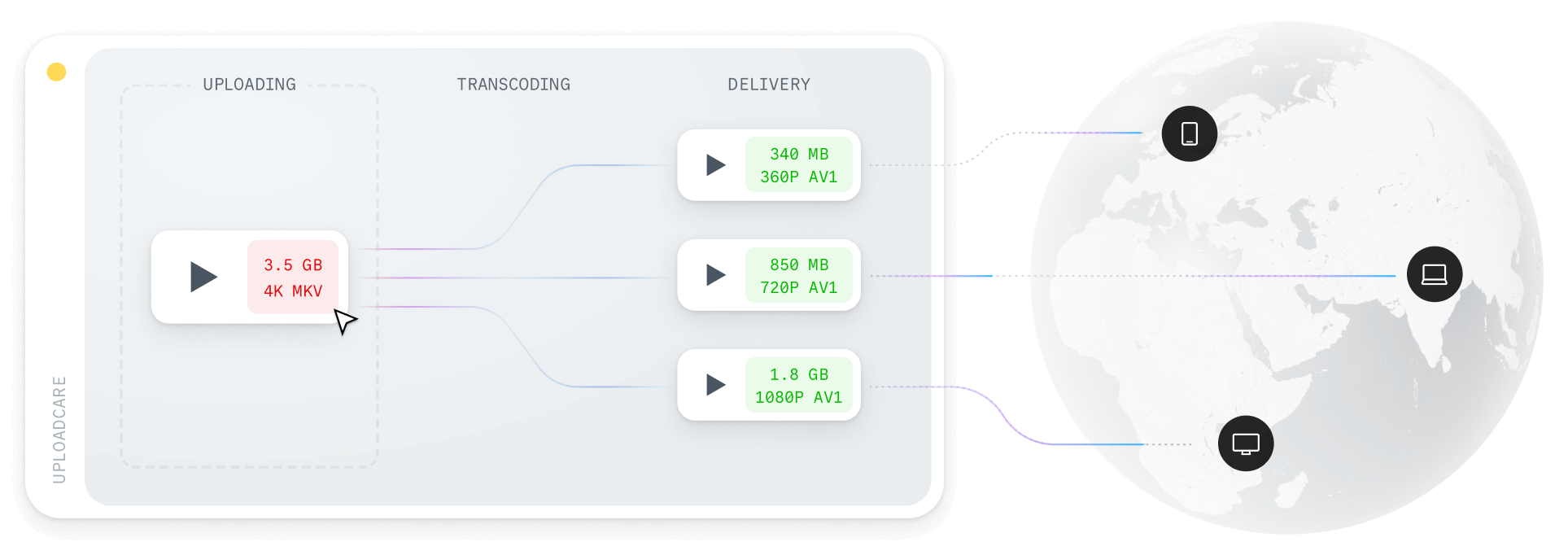
The pipeline has three stages:
Upload: You can upload a source file (up to 4K resolution and 5 TB in size) from
your application, a public URL, or a connected cloud source.
Transcode: The Video CDN asynchronously encodes the video into the renditions you
chose (resolution and codec).
Deliver: The uploaded video is then served as an adaptive stream from a single URL.
A video player requests the rendition that fits the viewer’s bandwidth and steps up or
down as conditions change.
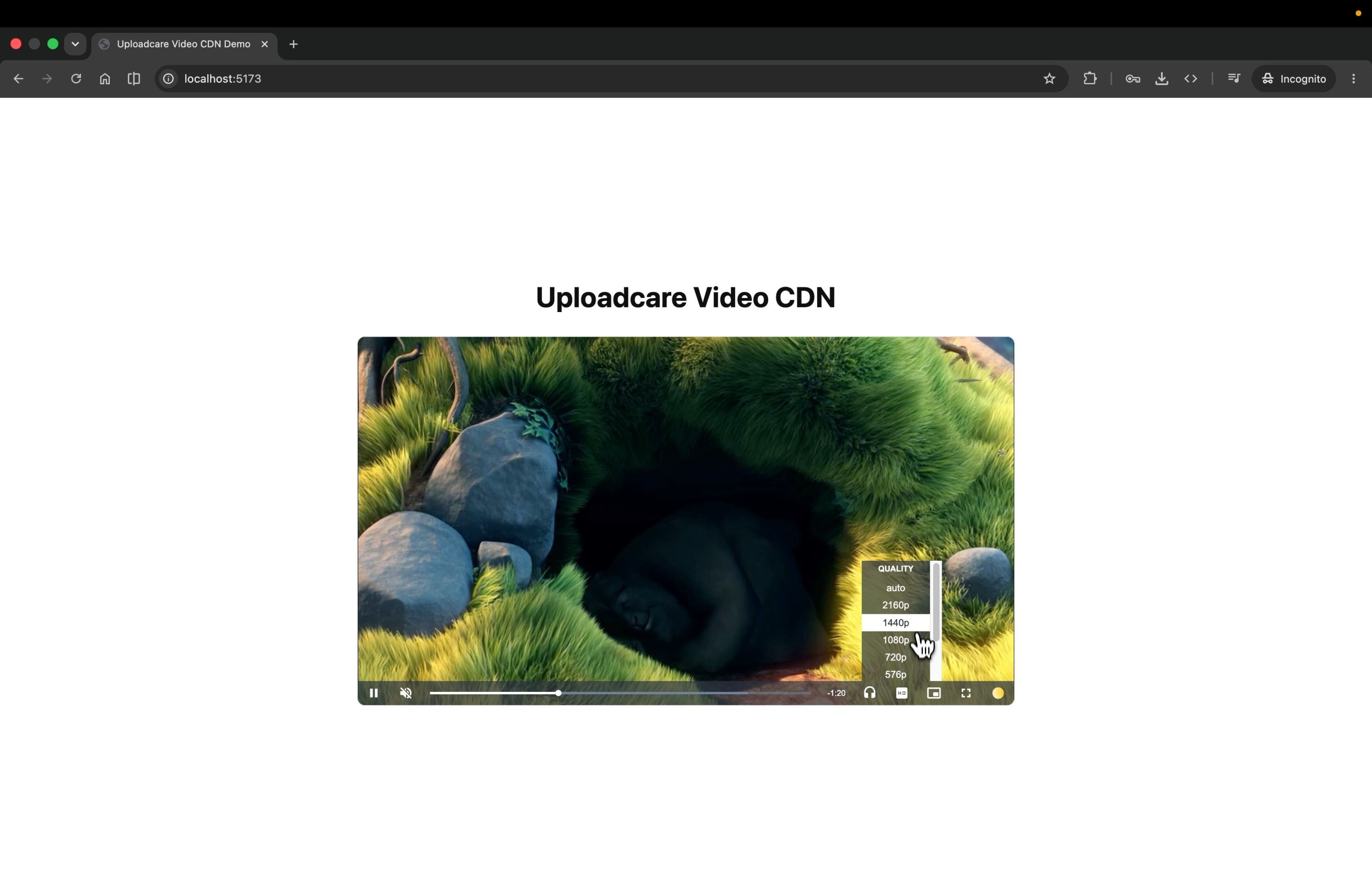
That URL is an HTTP Live Streaming (HLS)
manifest, so it works with any HLS-capable player. You can also use the uc-video
component, which supports adaptive bitrate streaming out of the box.
To use it, install it:
npminstall @uploadcare/uc-video
Then import the component and its styles in your entry file:
Pricing is operations-based, not per-minute. For each rendition you generate, you’re
billed based on the number of operations. That number depends on the rendition’s
resolution, codec, and length. Each rendition is billed separately. There’s no separate
per-minute encoding or streaming meter that spikes when a video takes off.
A lean H.264 ladder from SD to 1080p keeps operations low, while 4K or H.265 renditions
cost more to encode in exchange for smaller files and higher-quality delivery.
The base rate is 10 operations per 10 seconds, multiplied by a resolution factor (×1 for
240p–576p, ×2 for 720p–1080p, ×4 for 1440p–2160p) and a codec factor (×1 for H.264, ×2 for
H.265).
The duration is rounded up to the nearest 10 seconds.
For example, a 52-second video with three H.264 renditions (360p, 720p, 1080p) requires:
60 + 120 + 120 = 300 operations.
H.264 vs H.265: which codec should I use?
Start with H.264. It plays in every browser and on every device, so it’s the safe default
for any rendition you want every viewer to receive. Reach for H.265 when delivery volume
is high enough that smaller files are worth it.
H.265 (HEVC) compresses more efficiently than H.264. It was designed to deliver the same
visual quality at about half the bitrate.
Independent comparisons have measured reductions of roughly 35% to 50%.
The exact number depends on the content and how you measure quality. In practice, that
means smaller files and less data over the wire at the same quality.
Second, H.265 is a more operations-intensive format to encode than H.264, so it’s a
quality-and-bandwidth choice, not an automatic cost-saving. Enabling both lets H.265
serve the devices that support it while H.264 covers the rest.
Without a file infrastructure, adding video means building the pipeline yourself: a
transcoding pipeline, storage for every rendition, a CDN in front, and the ongoing
maintenance when jobs fail, or a new device format shows up. That’s a lot of work most
teams don’t want to take on. We’ve written about how
DIY file infrastructure quietly drains SaaS teams,
and video is the heaviest version of that problem.
Uploadcare already handles your uploads, images, and documents, so video is just another
file type in the same pipeline. The encode ladder, codecs, and adaptive packaging are
configuration, not code you maintain, and you get one integration and one operations-based
bill instead of a separate video stack to add and maintain.
Security is shared too: SOC 2 Type II, HIPAA-configurable workflows, GDPR, malware
scanning, and signed URLs apply to everything you upload, including video.
Where teams use adaptive bitrate streaming
E-learning and online education platforms
Most e-learning teams already run their course images, PDFs, and slides through one
system. Video usually shows up later, and when it does, it lands on a separate platform or
a per-minute service that sits outside everything else. But video is now core to how
people learn: lectures, recorded sessions, instructor walkthroughs. And your learners are
everywhere, on laptops, on phones, on connections you don’t control.
Adaptive bitrate streaming keeps the same lecture playing at the right quality for each
student, whether they’re on fast wifi or a phone on the train. Paid courses stay protected
with signed URLs. And because it runs on Uploadcare, your video sits on the same pipeline
as the course images and PDFs you already handle, so there’s no separate video vendor to
manage. You bring the player and the accessibility layer; Uploadcare handles upload,
optimization, and delivery.
SupervisionAssist, a platform universities use to run mental-health practicum programs,
handles exactly this kind of workload: large, sensitive training videos (around 1.5 GB
each) in a HIPAA-compliant workflow with signed URLs. Moving file handling to Uploadcare
raised their upload success rate to 99.9%, up from roughly one failed upload in twenty,
saving about 50 hours a year.
We’ve really been able to just set it and forget it at this point.
Property platforms already handle a lot of media: listing photos, floor plans, and more.
And there’s more video coming from more places every day: a drone operator, a professional
photographer, an agent shooting a quick walkthrough on their phone. Video matters here
because buyers are deciding remotely. A good walkthrough or aerial lets someone experience
a property before they ever visit, and for some buyers that video is the visit.
With adaptive bitrate streaming, those walkthroughs play smoothly for a buyer anywhere in
the world, on any device and connection. Restricted or premium listings stay gated behind
signed URLs. And all of it, the drone footage, the photographer uploads, the agent
captures, lives on the same pipeline as your listing photos and floor plans. One place for
every file on a listing.
E-commerce and D2C
On a product page, the media is usually already dialed in: product photos, 360 spins,
maybe a hero shot. Video is the piece teams want to add next because it shows the product
in ways a photo can’t, whether that’s a demo, a customer clip, or a closer look at how
something works. The catch is performance: a heavy video slows the page down, and a slow
product page costs you the sale. So video and page speed end up fighting each other.
Adaptive bitrate streaming settles that. The video adapts to each shopper’s device and
connection. It’s mobile-first and loads quickly, so it doesn’t drag the page down. And
your hero clips, customer videos, and product photography all run on the same pipeline as
the product photos and spins you already host. One vendor for everything on the page.
Try it
Adaptive bitrate streaming is available on every plan, including the free plan. The Free
plan supports video uploads up to 500 MB without a credit card, so you can run one of your
own videos through adaptive bitrate streaming and watch it adapt across devices in an afternoon.
Enable it in your project’s delivery settings. Check out the
adaptive bitrate streaming docs
for the setup.
If you’re moving off a per-minute or per-vendor setup and want to model the cost,
talk to our team.
FAQ
What codecs and resolutions does Uploadcare support for adaptive bitrate streaming?
H.264 and H.265, selected per rendition, at eight resolutions from 240p to 2160p (up to
4K). You save these as reusable per-project streaming profiles.
How is adaptive bitrate streaming priced?
It’s operations-based, not per-minute. Each rendition bills separately, scaling with its
resolution, codec, and length, so you control the cost by choosing the codec and
resolution. There’s no separate per-minute encoding or streaming fee.
Does H.265 lower my costs?
Not automatically. H.265 cuts bitrate by roughly 35% to 50% at the same visual quality, so
it moves less data, but it’s a heavier operation to encode. Treat it as a
quality-and-bandwidth choice rather than a guaranteed saving, and keep H.264 enabled for
browsers that don’t support H.265.
Can I use my own video player?
Yes. The /adaptive_video/ URL is a standard HLS stream, so it works with any HLS-capable
player. You can also use the drop-in uc-video component.
Ready to get started?
Join developers who use Uploadcare to build file handling quickly and reliably.
Trust Jamin Okpukoro is a Developer Advocate and Senior Technical Writer with a strong background in software engineering, community building, video creation, and public speaking. Over the past few years, he has consistently enhanced developer experiences across various tech products by creating impactful technical content and leading strategic initiatives. His work has helped increase product awareness, drive user engagement, boost sales, and position companies as thought leaders within their industries.